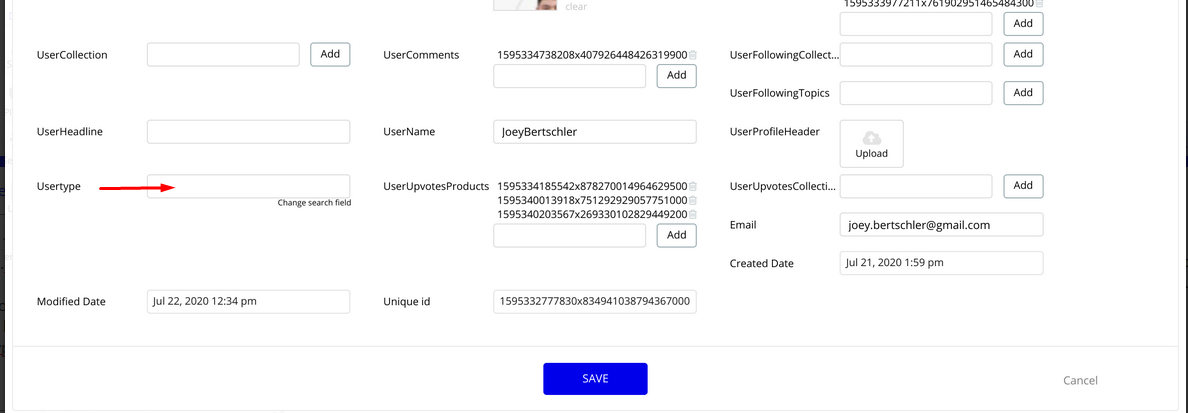
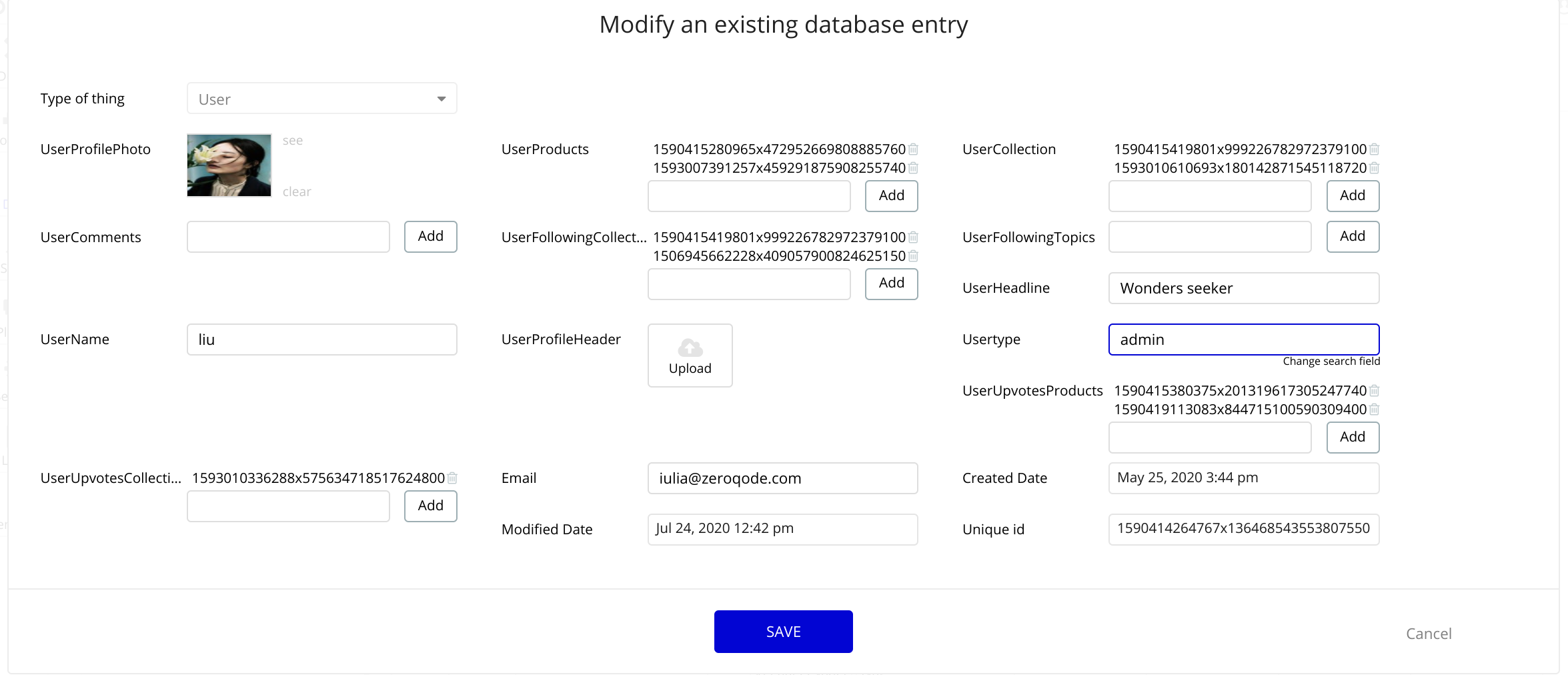
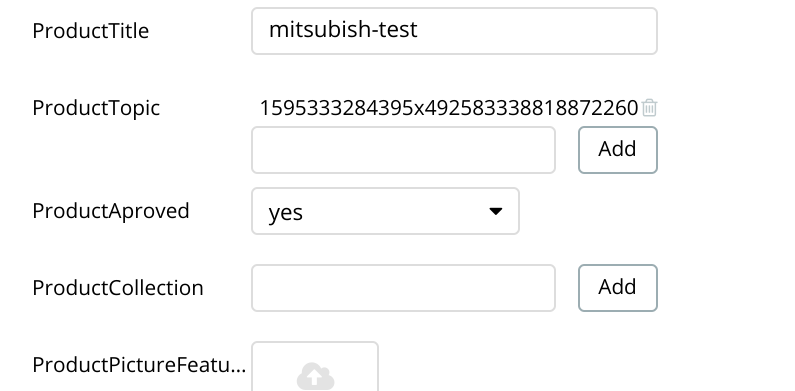
This is where you have to edit user record and type admin, in order to make admin features available.
As for this one:
Even if you deploy the app to live, it shouldn’t behave this way. Perhaps you have to deploy your database to live as well, so you’ll be able to see the populated content in live mode also. Try to deploy both app+database to live, then give it a try again.
I typed in admin, clicked on saved& got a entry successful popup,
but when I opened the preview, the problem prevailed
I checked one more time to see the field was empty again, so I typed admin again and clicked save thinking I must have derped out, but when I opened it right up again, it was empty once more
I noticed that there was no suggestion box or anything popping up when I typed in admin or Admin or isAdmin
I must have some setting wrong still
Is a type missing perhaps? maybe I need isAdmin AND admin? (didn’t work either but something similar perhaps?)
I went to the database and clicked “switch to live database”
that didn’t do it
I clicked on deploy to live version, next to the preview button while still in the data - app data tab and got a “deploy message” popup (which confused me so I just typed in “test”) followed by another popup that asked me to share the site with social which I ignored
that didn’t do it either
I clicked around a bit more but couldn’t find any other way to deploy something to live, save it or publish it (etc.). My bubble plan for the app is personal if that matters (the ~$30/month one)
//
I can work around the first issue by entering things into the database in the back-end (is this the correct term to use here? back-end?) but the second issue is a real problem for me
I have also sent an email to bubble to check if they have any idea, since I couldn’t find an answer via google, youtube or in the forum
Could you please try to create a brand new app based on this template, then make this admin-related adjustments and give it a try again on Preview. Because you should be able to interact with front-end and use admin features properly.
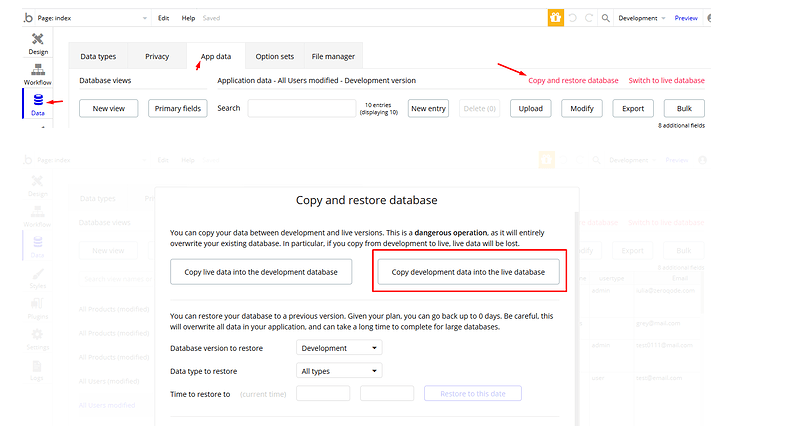
Also, it is important to deploy the database into live, first. Then you’ll be able to switch and see it populated with content. You have to do it here:
Please try to follow the instructions above and our documentation as it is the best resource for setting your template up, and if it still doesn’t work, we’ll take a look into your application.
I did that and ran into the problems I mentioned above. I followed both he tutorials and did as I was told, but I must have been missing something or messed up somewhere.
I noticed the screen sometimes switching without the mouse moving hinting towards the use of hotkeys like alt+tab, perhaps something like this? Or I just missed it.
Do I need to edit or add something else? Can you show me where/what?
You show a screenshot of Data/Data Types but then show another screenshot from Data/App Data which is a different menu leaving me confused - is my interface wrong? Can you modify existing data base entries at data types and not just in app data?
Do you mean to change the usertype to admin by at data/app data?
“I typed in admin, clicked on saved& got a entry successful popup,
but when I opened the preview, the problem prevailed
I checked one more time to see the field was empty again, so I typed admin again and clicked save thinking I must have derped out, but when I opened it right up again, it was empty once more
I noticed that there was no suggestion box or anything popping up when I typed in admin or Admin or isAdmin
I must have some setting wrong still
Is a type missing perhaps? maybe I need isAdmin AND admin? (didn’t work either but something similar perhaps?)”
or in other words:
If I type in admin there and click save - it doesn’t save and remains empty. What can I do to fix this?
//
The live deployment now worked
For anyone else reading this, don’t forget to type in the COPY FROM DEVELOPMENT in the box below
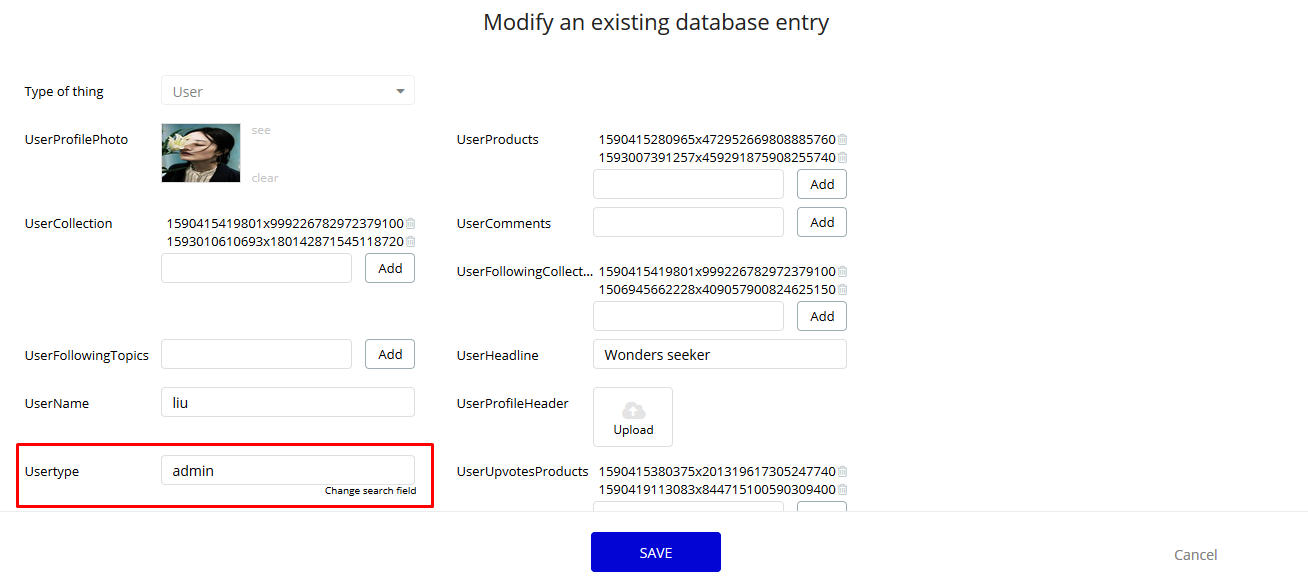
Thanks for your feedback. Sorry for any misleading, but could you please do the following changes only: create a brand new app based on this template in order to have the latest version, make the admin adjustments just by typing admin for Usertype here in your App Data tab for a random user of your choice:
Then please go to Settings - Collaboration tab within your editor. Add our support@zeroqode.com account to your collaborator’s list. Also, please tell us your app name.
Note: avoid the warning message regarding plan, as we are an agency and you can easily add us to your collaborators.
We’ll investigate it inside your app and get back to you with a feedback asap.
This shouldn’t be an issue on this matter.
It is not necessary to make changes in here, but your database structure is certainly different from our latest version of template. The isAdmin field is not present for sure, there is only usertype that is responsible for granting admin rights, thus, making dashboard features available.
Your interface is not wrong. Everything is alright. The Data - Data Types is where your database structure is, and Data - App Data is where your actual data entries (records) can be found. This is where your data information is located that your application is populated with later on. And you’re able to modify these entries via whether Data in your editor, or the best (and the appropriate) way is the front-end of your app. So, the only thing that you have to change is in the App Data, the user record (its Usertype field).
It should work only with the Usertype field.
Please add our account to your collaborator’s list based on instructions mentioned above. We’re going to check on it and get back to you with working solutions asap.
Create a new app, called it UpHuntTest, Picked the first test user (iulia@zeroqode.com) in data/app data/all users/ top of the list on the right
I type in Admin, save, open it up again, gone. The same problem persists.
Did not do anything other than the described above.
I added you to UpHuntTest but there is a warning that might interfere (new project → not on paid plan anymore → can’t invite collaborators) though you mentioned that won’t be a problem for you
(saying this for other users that might read this. Side-note: I was very frustrated with this before. Now I am insanely frustrated)
Maybe not for you, but as a user, especially as a new one, I have no idea how to follow instructions when the instructor so to speak teleports and doesn’t clearly state how he navigates
It’s not like he often mentioned where he clicks or what menu he is in and sidebars aren’t always in view either
I had to add the isAdmin field which I did because of and according to your tutorial here
Thanks for sharing your application. We have successfully found the reason why this Usertype field was resetting its value after typing something in. So, in your App Data tab, select a record to edit, then hit Change search field:
And you’ll be able to easily type in the admin value into Usertype field, and everything will run smoothly. You’ll be able to access admin features from your dashboard and interact with UI as supposed to be. However, even with the default unique id is still possible to grant the admin rights to a user, but you’ll just need to type in its unique id value, accordingly. But template is built with a condition for Usertype’s name, so the best thing is to change the primary field to this one.
Please consider our apologies for inconveniences, we’ll have to add this step to our documentation as well, so it doesn’t create any confusions anymore.
This is just the part of a customization of this template, which is up to each user in particular how to adjust the template according to own preferences. You can still use the isAdmin if you’d like to, but the idea is that template has been updated with some fixed bugs and new features added, like the Usertype field for granting admin privileges. This new database structure has some tailored logic in other places as well, so the best way to check on template’s configurations are docs, as previously mentioned.
Sorry, but this one is not reproducing on our side. Please use the latest version of this template, and make sure that you’re actually logged in with a user that has admin rights. Even in your shared application everything is working properly:
Thanks for your honest feedback. Always welcome and we’re glad it’s working on you side as well. If you like our template so far, could you please rate it by going to Template tab in Bubble editor. Find the template by name and give it as many stars as it deserves. The more feedback we get, the more motivated we are to build great templates!
I mad a review and ran into a bug. I wanted to vote 4.5 stars (5 if you re-do the tutorials) but it automatically changes this voting to 4 after I submit.
Regarding the template
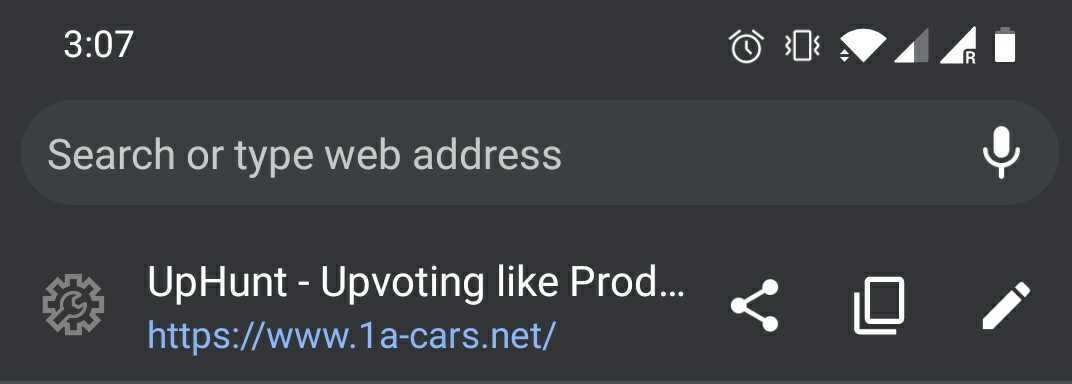
When I send people a link to take a look at the project, they get a bubble-template-preview
How can this be changed?
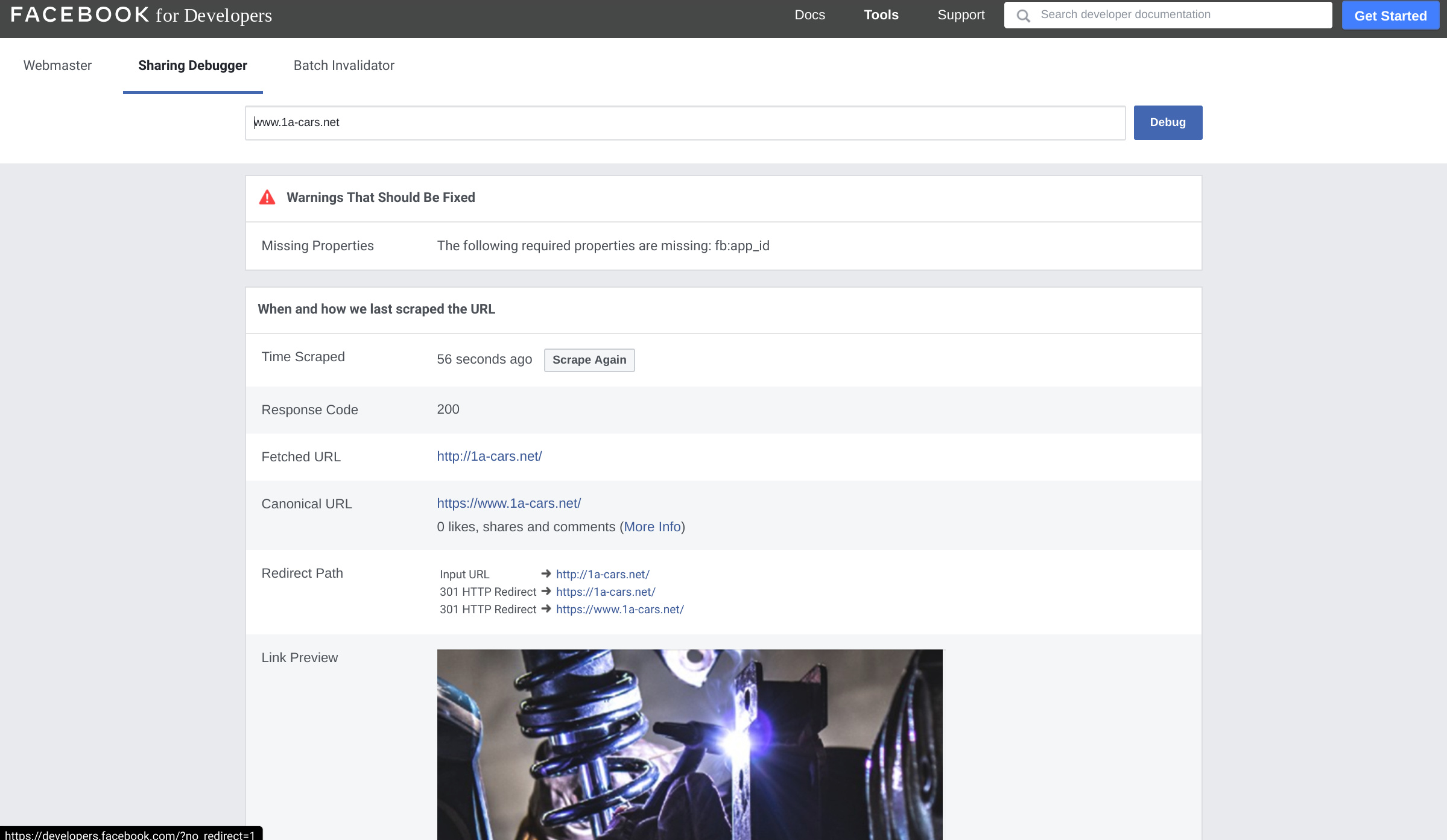
(This pops up if I send someone the 1a-cars.net link in an Instagram DM)
I wager this is the same for other templates - feel free to simply post a link to the right thread, I didn’t find it
Thanks for feedback. In order to be able to change it to your own branding and for meta tags to function properly, it is required to have a paid Bubble plan. You can upgrade in ‘Settings - App plan’. For more information, please check https://bubble.io/pricing.
did not work, preview tex ton both laptop and phone are still wrong
when I try to click the refresh/debug button, it takes me to some facebook tool site and prompts me to enter a link - what follows doesn’t help either
I can’t put a video into the gallery of a product both in front and back end and the only way to do it is by creating a new product and then deploying it there. The back end menu only offers options for pictures and the front end none after the product has been deployed. The gallery also disappears if there is no product video or the product video is deleted
in the back end, I previously had 1 youtube video and 3 images. the youtube video was broken (from youtube’s side) so I wanted to put a new youtube video - this is how I found out that I couldn’t edit the youtube video link after deploying the product, only delete it and that deletion would break the gallery. I also found out that the gallery generally only works if there is a youtube video at the top (when I deploy a new product and only give it 2 pitures and no video, there wont be a gallery but simply one picture in display)
also, while I am at it, I tried to deploy some more test products, but the internet page (not the preview) did not update. I assume it takes some time? If yes, how long? 1h? 24h?
(I deployed the editing that I did in bubble to the live version twice to make sure)
edit: I also discovered that typing in anything into these 2 fields and clicking add doesn’t do anything (apparently)
edit: it also appears that the product gallery section is too limited. The field is too small, only pictures can be put in (with the exception of one youtube link if done when creating a new product in the front end) and editing pictures or changing their position is equally as impossible
edit: the deployment problem persists
when I try to add new products through the front end and then deploy to live, nothing happens (so I can fix broken youtube videos and galleries)
when I do anything in dev-> app data and then deploy it to live → same (nothing happens)
notice how the live and dev version are still different. in dev, the first product is a different product. the original first product you can see in live has been deleted but persists in the live version
edit: sorry for the poor format, it’s very hard to write in an orderly fashion when the comment/post window looks like this:
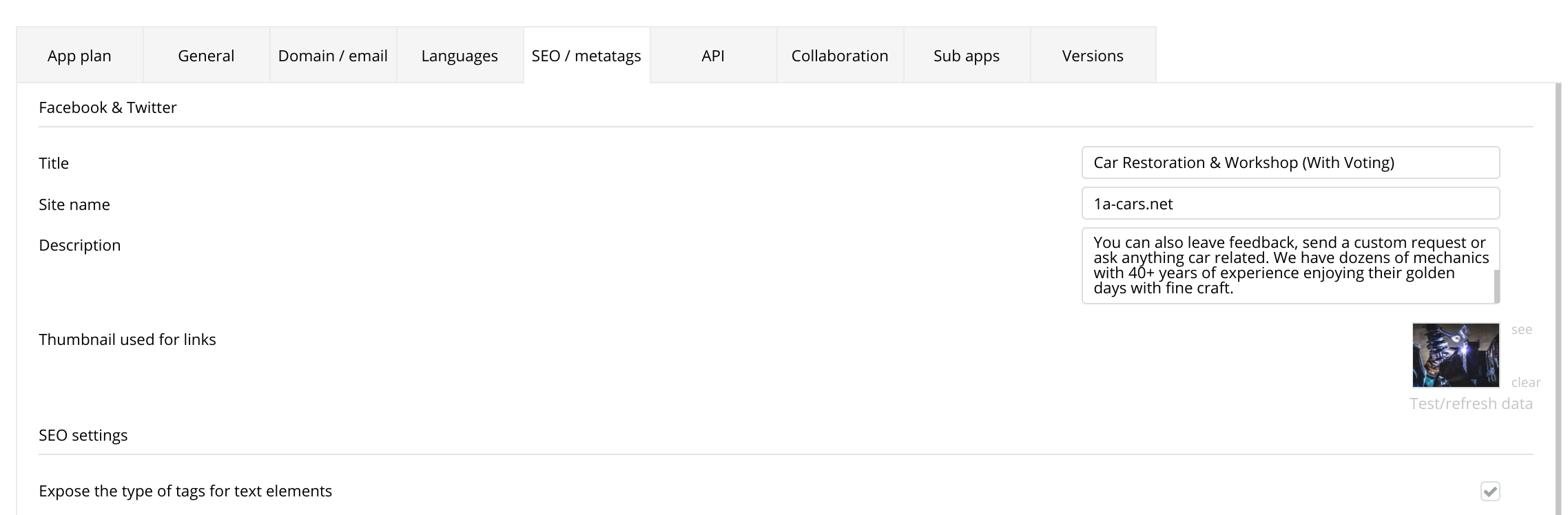
Regarding SEO, unfortunately it is not a template-related issue, but it is your actual Bubble app that needs to be deployed properly in order to see the SEO changes. We cannot provide exact solutions on this matter, unfortunatley, because it is beyond our support services, but here is a hint into the right direction:
you change the SEO settings in your Settings tab
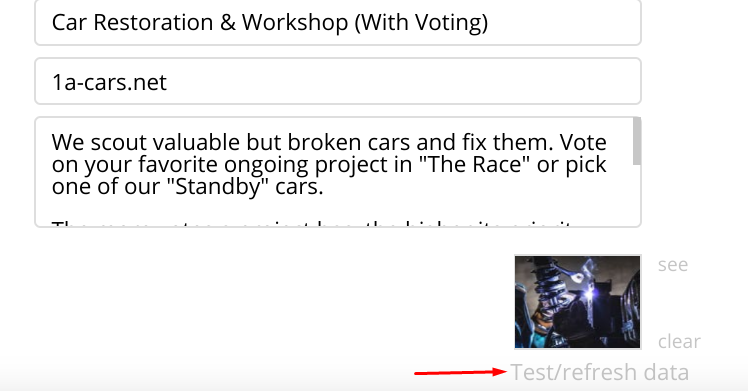
Test/refresh data
also change the SEO for each and every page of your Bubble app; just click to open propery editor of your whole page, so you can edit SEO there as well
deploy your app+database to Live
In case you need more help with Bubble, please post your request as a new thread, or you can check our Lab courses https://lab.zeroqode.com/ to help you sharpen Bubble skills, then easily customize our templates, as we recommend to have an intermediate experience to easily tweak it.
For testing your Bubble app in Live with populated objects, you need to deploy your test database into live; not only deploying the app. As previously shared, here is where you can do it:
I selected different pages before heading to settings, didn’t seem to make any difference. Can you specify what you mean by ‘property editor’ and ‘whole page’>
I did that too. Doesn’t seem to update the page. Neither SEO nor any other changes. Currently my biggest problem. Edit: the other changes (products) work thanks to your solution in the second paragraph after 4. I remembered it incorrectly, thank you for clearing that up again. Regarding the SEO/preview texts: will do, thank you anyways.
Thank you for looking into the video thing. Let me know if you need anything and feel free to access the project - it’s a test project with test data and placeholders.