
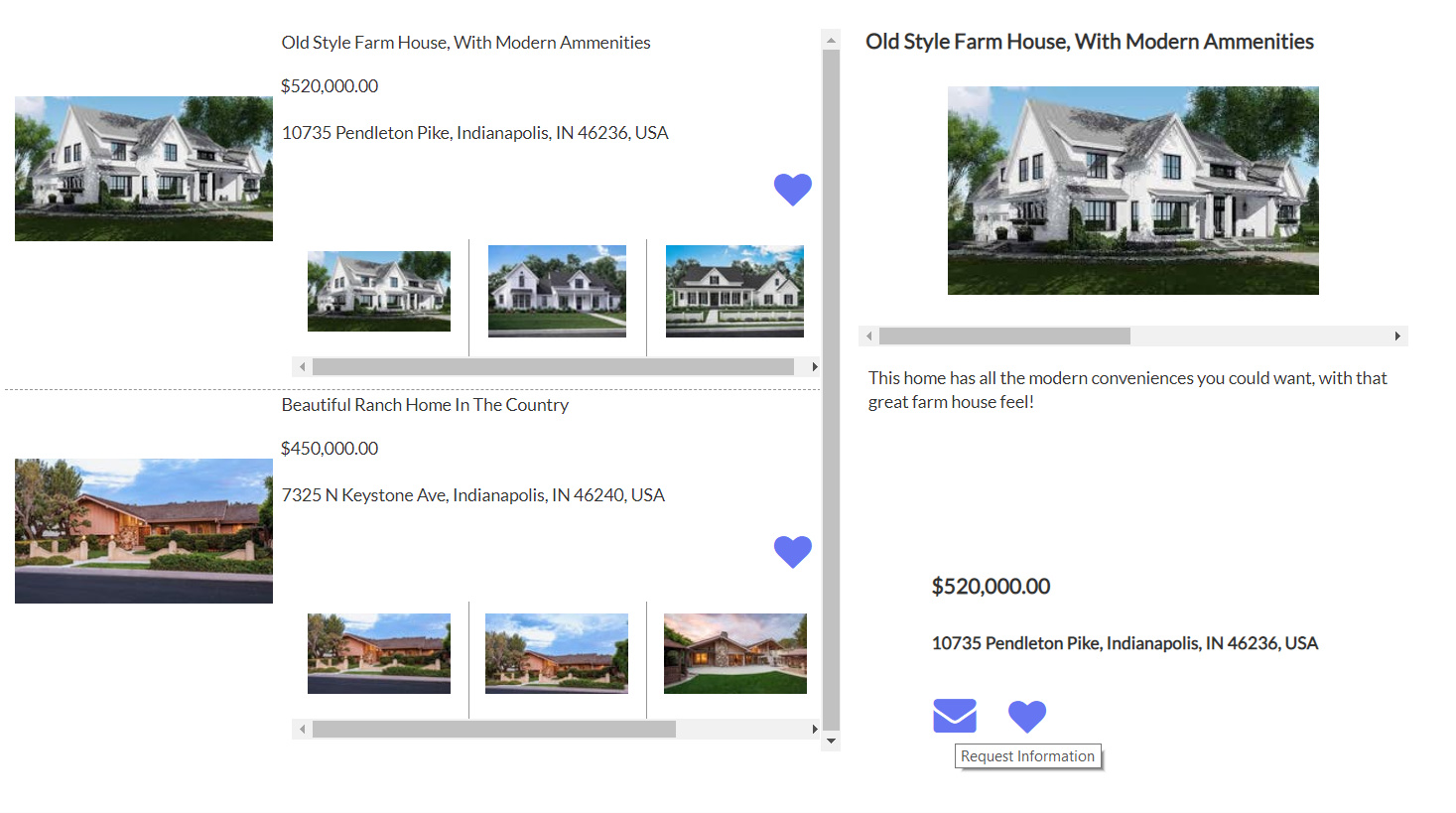
Here is a bit more detailed example for you. In this example, I’ve set up the data type “listing” and added the fields. Then, I’ve added a repeating group to show the available listings, and a second group within the first to show the photos, as well as the listing overview. When the user clicks the listing’s title, the details of the listing populate the “details” group on the right side.
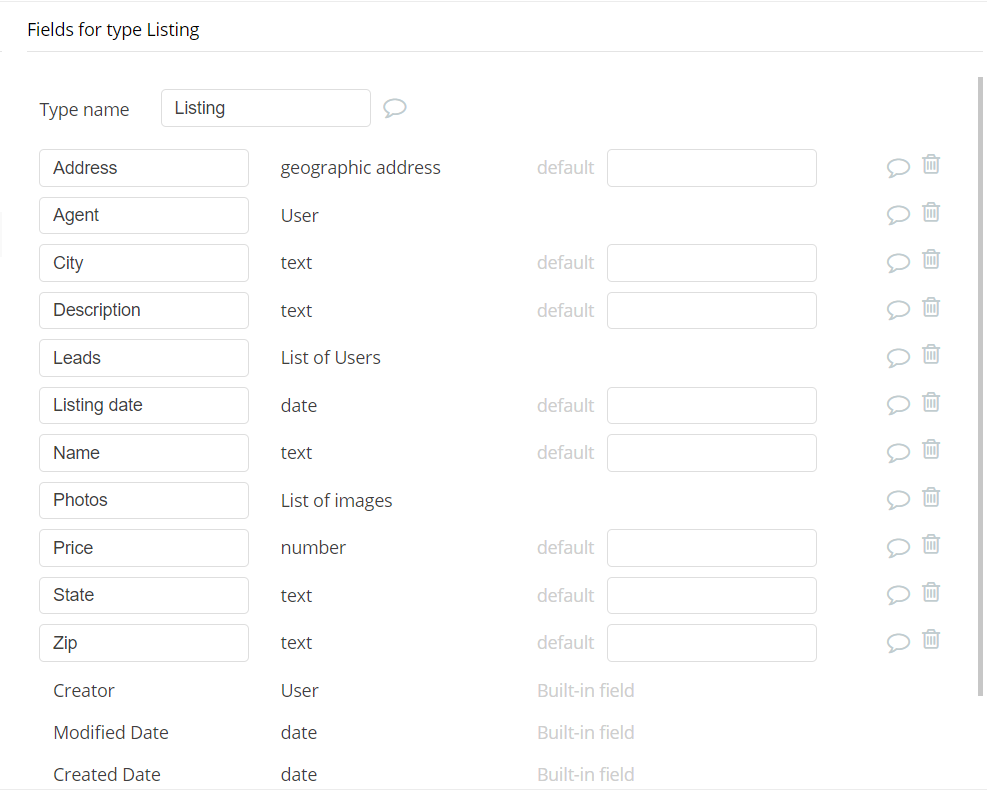
First, the data type Listing. I’ve added fields to be used later in searches and filters, such as city, state, zip. You can use the “extract” function to populate these fields from the geographic address:
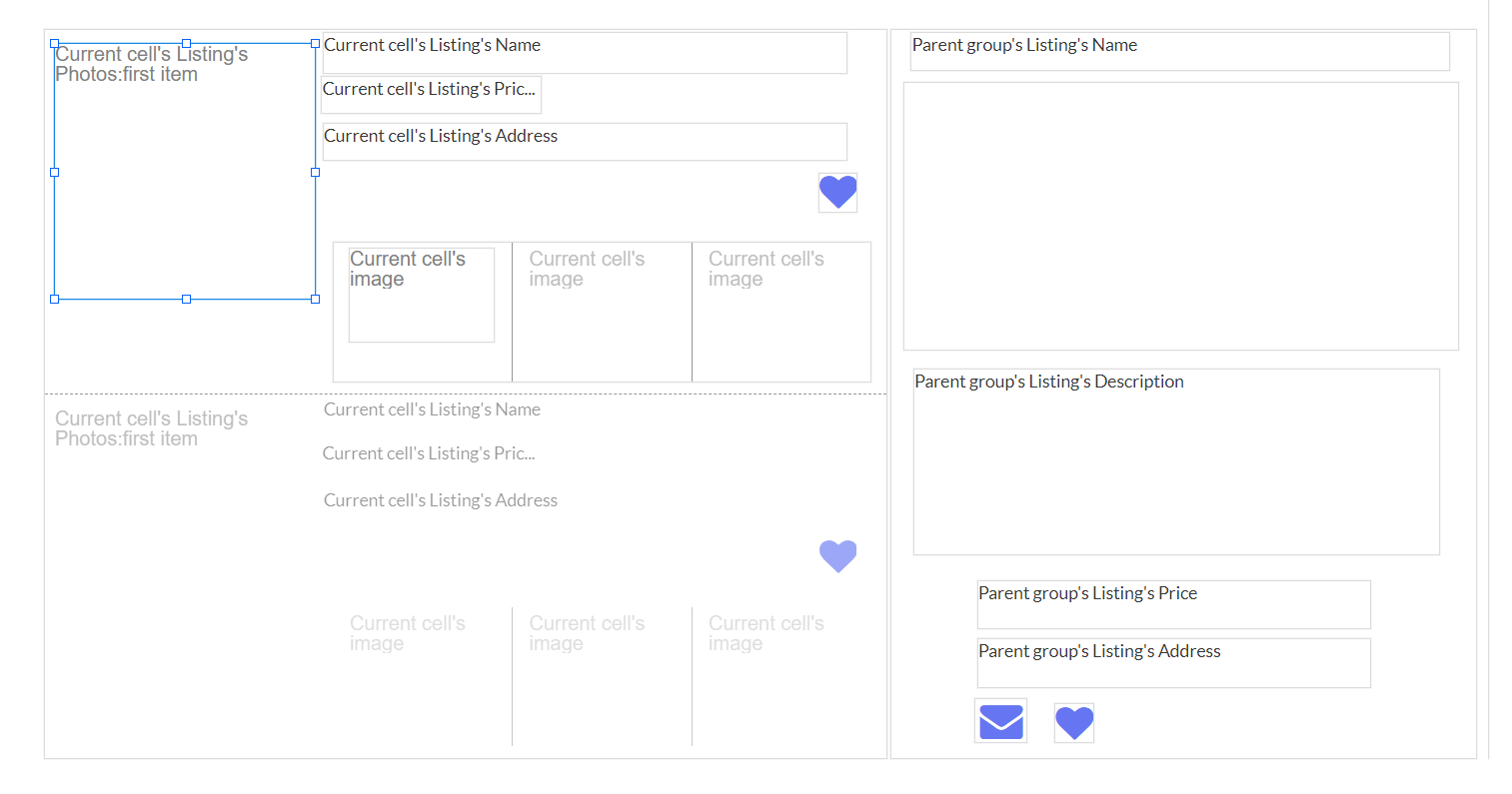
Next, we construct a basic UI to show the listings, and the details of the listing when it is clicked by the user.
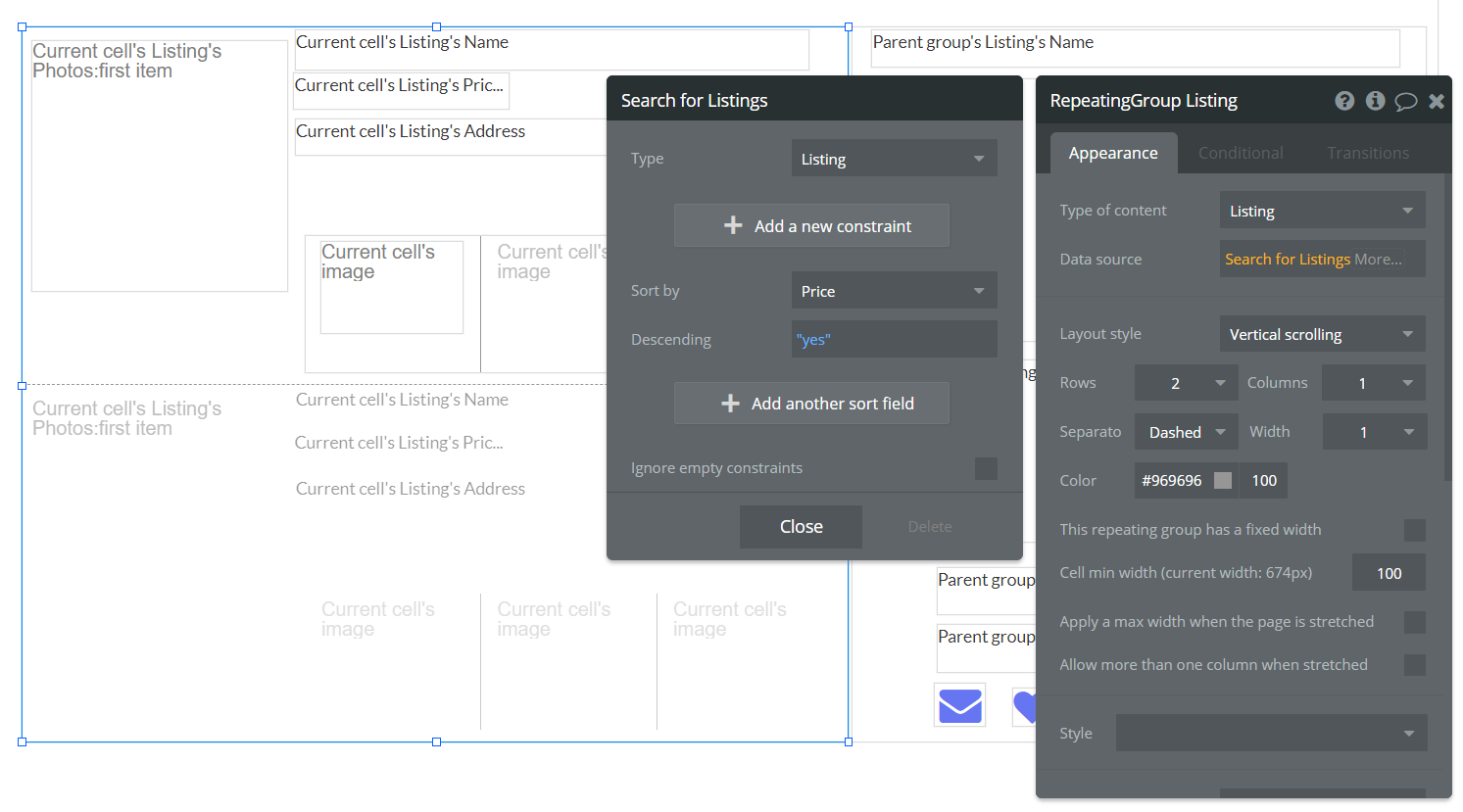
A repeating group to display all available listings. You can construct this with searches, filters, etc. The source of the repeating group is “do a search for listings, and sort by price”.
We’ve included an image element on this repeating group to display the first listing photo as the main photo. The source of the image is “current cell’s photos: first item”. As a side note, I might add a field for “Main Image” or something, and make it a single image. That way the uploader will know that they should add one primary image, and then a list of other images.

In this repeating group, we add a second one, and change it to horizontal scroll, to show other images. The source of this repeating group is “current cell’s photo’s”

Finally, we add a detail group to the right. We set the group’s type to listing, and leave the data source blank.


We then add a workflow to some element of the repeating group. In this case I’ve just used the title of the listing. It could be the photo, some button, an icon, etc. We’ll use one action to display the current cell’s listing into the “details” group we’ve set up. This can also be a popup, another page, etc.

In the details group, we’ve set up elements that will display the data of whatever listing currently populates the group. This way, the group changes dynamically based on which listing the user clicks. Finally, we end up with a usable UI that allows the user to see the listings, and view their details. You then build on this to add more functions like search, filters, request information, add to favorites, etc.
The result is a very ugly interface that needs a lot of styling to look nice. But it’s functional, if lacking in options.

As with anything in bubble, there are lots of ways to accomplish the same thing. This just gives you an idea of how to make the logic function, when dealing with repeating groups, data types, and displaying cell values in something like a group. I hope this helps you get moving again!