
If you’re stuck with Generating the keystore
First the tutorial tells you to download Hombrew
Important: Please make sure you have Java installed on your machine when generating a keystore. You can install Java through Homebrew. Download Homebrew here if it’s not already installed.
I skipped this part and went to
https://www.oracle.com/java/technologies/downloads/#jdk24-windows
Then running the command wouldn’t work
keytool -genkeypair -v -keyalg RSA -keysize 4096 -validity 10000 -keystore KEYSTORE_OUTPUT_FILE.keystore -alias KEY_ALIAS
So I had to create the Path
Nicely enough the AI gave me the way to do it
Step 1: Find the Java JDK bin directory
First, you need to locate the folder where your Java JDK is installed.
- Open File Explorer and navigate to
C:\Program Files\Java\or a similar location. - You should see a folder with a name like
jdk-17.0.2,jdk-21, or something similar. - Open that folder, and inside you will find a
binfolder. - The full path will look something like this:
C:\Program Files\Java\jdk-21\bin. - Copy this full path.
Step 2: Add the bin directory to the PATH environment variable
- Click on the Start menu and search for “environment variables”.

-
Click on “Edit the system environment variables”. This will open the “System Properties” window.
-
Click the “Environment Variables…” button.
-
In the “System variables” section at the bottom, find the
Pathvariable and select it. -
Click the “Edit…” button.
-
In the “Edit environment variable” window, click “New”.
-
Paste the path you copied in Step 1 (e.g.,
C:\Program Files\Java\jdk-21\bin).

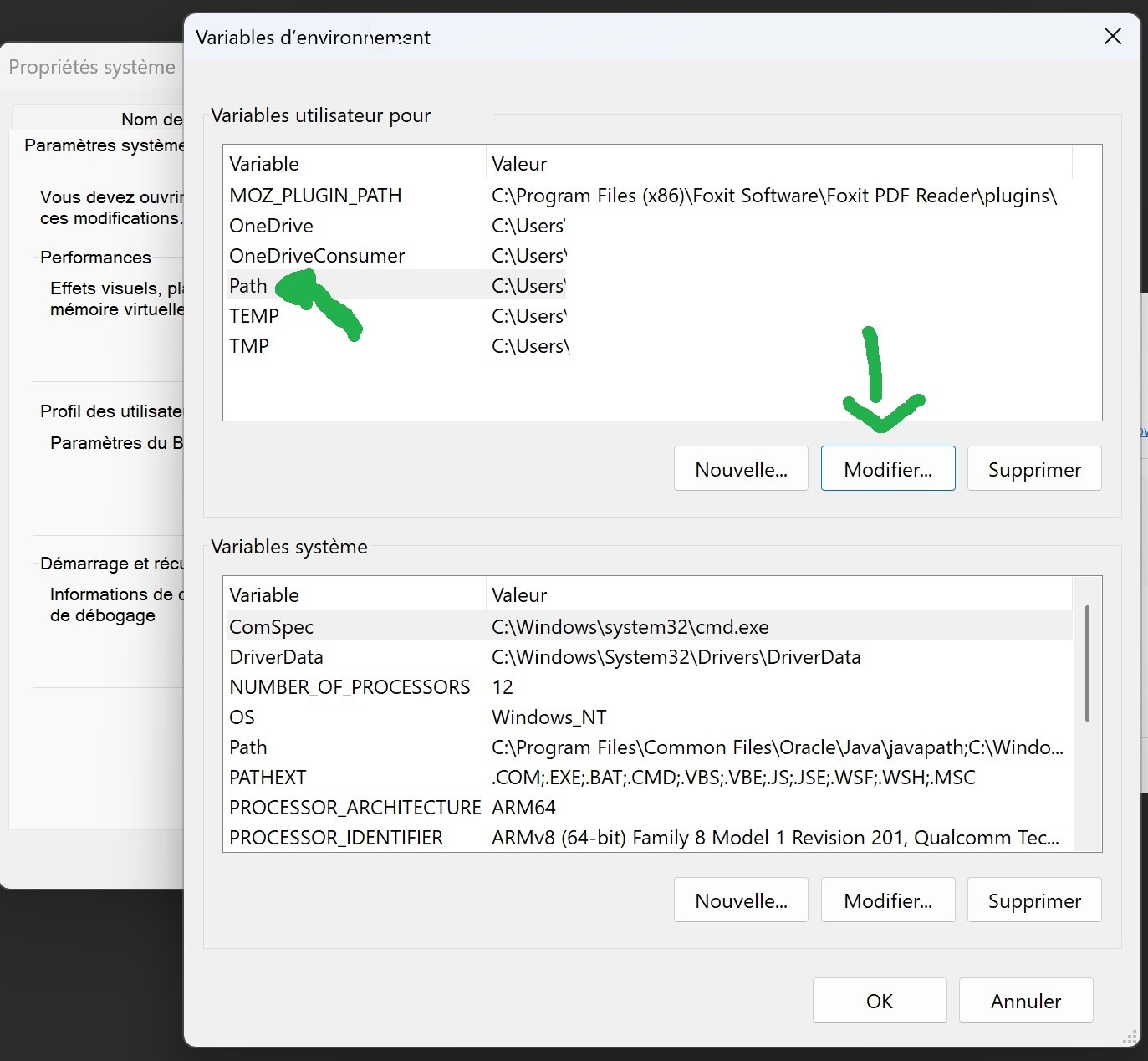

- Click “OK” on all the open windows to save the changes.
Step 3: Verify the changes
- Close and reopen your Command Prompt window. This is crucial, as a new instance is required to load the updated environment variables.
- Type the
keytoolcommand again:keytool -genkeypair -v -keyalg RSA -keysize 4096 -validity 10000 -keystore KEYSTORE_OUTPUT_FILE.keystore -alias KEY_ALIAS - This time, instead of an error, you should be prompted to enter a password for the keystore.
The tutorial is finished here
— BONUS —
You may want to verify if your password is correct and get your SHA-1 fnigerprint now
If you’re going to use the Google GeoCoding API
Type this command
keytool -list -v -keystore your_keystore_name -alias your_alias_name

You’re going to get the SHA-1 of your keystore
