Generate shipping labels - video tutorial - Jan-26 update
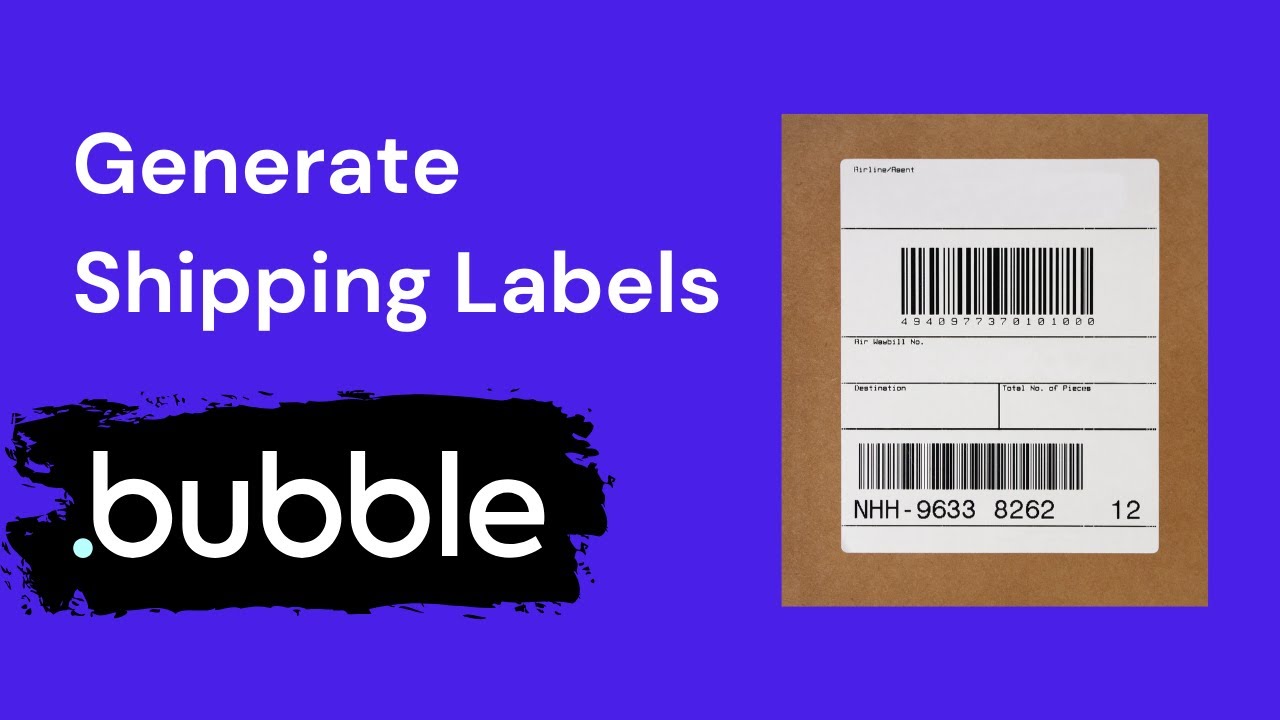
Just released a new video tutorial on generating PDFs of shipping labels with DocuPotion:
A bit different to some of the other video guides I’ve posted as the shipping label is designed using the DocuPotion template editor (rather than designing it in a separate page of your Bubble app):
New Repeating Element component - January-26 update
An update for DocuPotion users designing their PDFs using the template editor: we recently released a new Repeating Element component.
It’s quite similar to the repeating group you’ll be familiar with from Bubble. The repeating element let’s you display a list of items in a grid layout.
The new GET Templates endpoint allows you to programmatically access all templates you created in the DocuPotion template editor. Here’s a sample response:
Alex, any easy way to shrink to page for a page (within a bunch of other pages)? Or to have Create PDF generate different size pages that can then be printed to shrink to fit?
Once you’ve created your template via the DocuPotion dashboard, you can Generate PDFs of it from your Bubble app using our plugin (using the ‘Create PDF from Template’ action).
Other cool bits
Provide sample data - provide sample data and the AI will automatically include {{merge_fields}} that match your data schema
Follow-up edits - simply chat with the AI to make edits after the initial generation
Multi-page documents - build multi-page contracts, proposals and other docs with neat page breaks
Image uploads - drop in your own images and have them embedded directly into the template
Try it out
You can try out the AI-powered editor in the templates section of your DocuPotion dashboard.