Thanks for the fast solution. Works really well. 
I think especially on mobile it would be easier to use - but nevertheless like it is now it is also very good.
Thanks for the fast solution. Works really well.
I think especially on mobile it would be easier to use - but nevertheless like it is now it is also very good.
@gm.zumbo I’m loving your plugin - thank you so much!
one thing I can’t seem to figure out but must just be me needing sleep? I have my app loading a photo into a popup with the cropper area visible when you click ‘add a photo’.
Once the user adjusts to their liking, they click save and it uploads the photo and I add it to a list of images. That works great.
But when the user clicks ‘add a photo’ again, the cropper popup opens up and previous image is still visible (until Browse loader results in a new file). Is there a way to reset the Loader after successful Upload, or detect new image done loading so I don’t show cropper until that is true?
Hi @cleasto ,
the Loader element supports standard reset bubble command.
You can wrap the loader into a group and reset the group.
Let me know if this works.
Thanks for the quick response. I’ve tried doing that with a group reset but it doesn’t seem to work for me yet. Will keep playing around with it!
Update: Still not having luck. The Cropper continues to display the previous loaded image even after reset. I can tell reset is having an effect since Loader and Reducer file sizes are reporting as being reset to nothing, but Cropper image persists even though it’s linked to Reducer image.
 Any ideas what I might be doing wrong @gm.zumbo ?
@gm.zumbo For now I’m doing a workaround to simply hide/show Cropper when the Loader image is empty or not empty. That way, the reset will be detected by Cropper and allow for basically the same behavior.
So not a big concern anymore. Thanks!
I have a small problem here with the resizer.
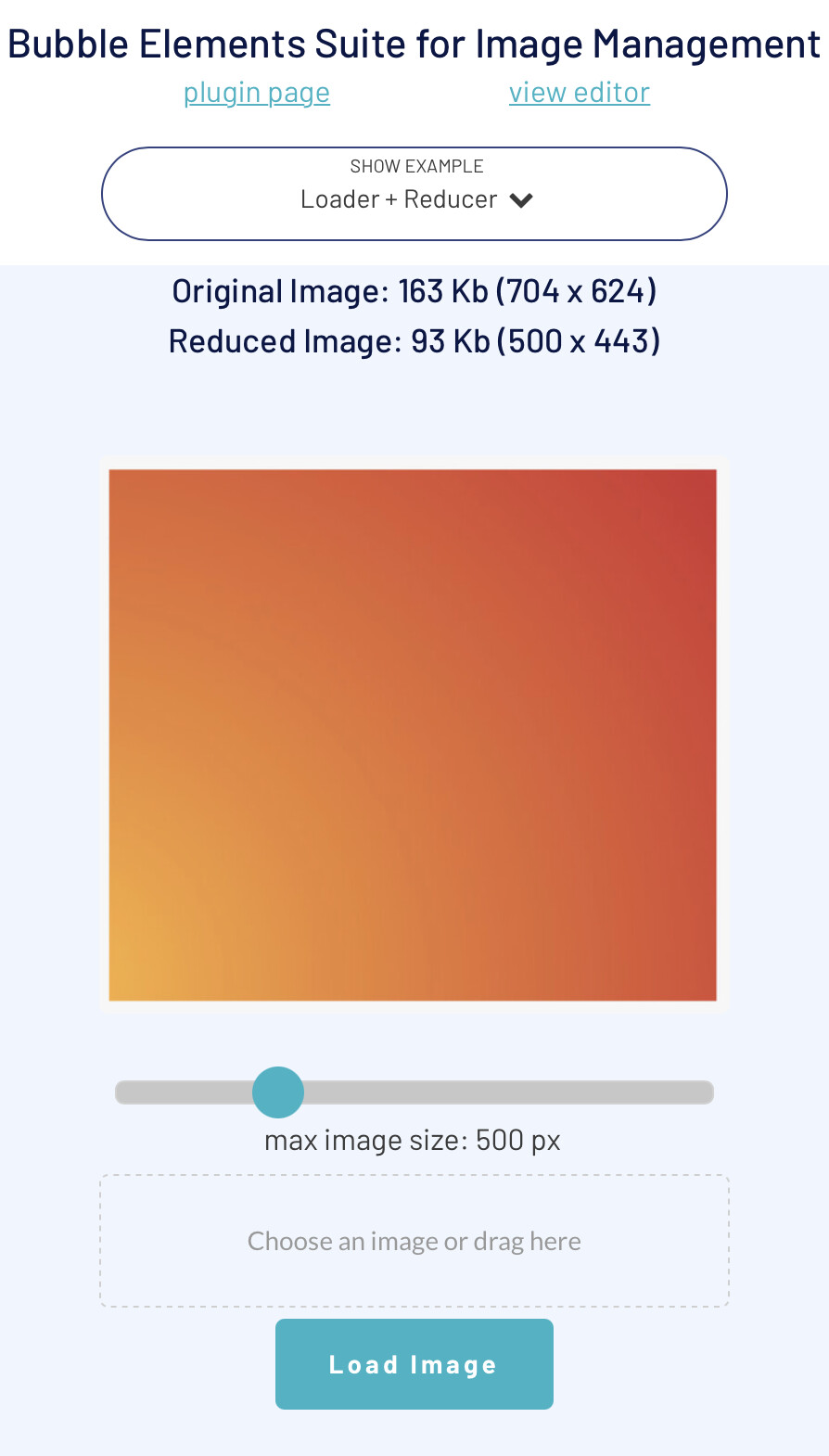
Every time I load an image - and then resize it - there are watermark like black pixels on the image. (The second orange image is from the resizer - the first is from the uploader). The resizer is directly connected to the loader.
PS: Happens every time.
Thanks in advance for the help.
Hi @maze ,
does it happen with all images or only with a specific image?
Using your image on the test site (Gimazu Plugins | ImagePro) I was unable to reproduce the problem
@maze
This is the screenshot
Yes It happens with all images…
I simply put a Loader element & a Reducer element. The Reducer elements dynamic image is set to Loader’s Image Loaded.
Does this also happen to you on my test site? Have you tried using a different browser?
Can you share the link to your app in PM?
Yes it happens also on the test site. 
I also tried to use a 2 different browser. The problem is still there…
*UPDATE: The problem appears in Brave Browser, Chrome, Opera - however not in Safari. Also if using big images the problem seems to not exist.
Very small image (although it doesn’t make much sense to use the Reducer on such small images because the size increases) and Chrome.
The issue does not occur 
Try to reset the cache to reload reducer libraries
For further tests write me in private
@gm.zumbo Hi! Congratulations! Excelente plugin. I recommend it for everyone who needs optimize storage cost and have fun with images.
Hi @polenvinagre,
Thank you for your appreciation!!
There is a little point in saving images in a circular format. Also because if you later want to display the images in square format (for example because you want to change the appearance of the app) you will not be able to do it without reworking all the images already saved. Instead, I suggest to save the profile images always in square format by setting the crop ratio 1: 1 and display the images in circular format through the tools made available by the Bubble interface (using for example a group with background style = Image and Roundness = max width / heigth).
The images in circular format, in fact, do not exist (they are only images with transparency → another limitation in this case is you cannot use images in jpeg format).
Thanks for quick response and for the advise. I will work on this way.
Hi, @gm.zumbo!
I need help again…
On Cropper setup => View Mode = 0
The image result is Black on the “checkered” space around the image.
Is it possible to change the color to White?
Reason: All my page on app is White and some image with a “border” black are not good.
Thanks in advance!
Hi @polenvinagre,
you can set result image format in Get Crop action.
If result image format is “image/jpeg” you can use “use fill color” and “fill color” option to fill transparent channel (if any).
If result image format is “image/png” transparent channel is preserved (if any).
Hi, @gm.zumbo!
I am not an expert in digital image.
I think in my case there is not a transparent channel.
There is only a “blank” area when I crop an image and the cropped area is bigger than the image.
As you can see in the image attached.
I already set the FILL option to #FFFFFF (white) but the final result continues black.
Hi, @gm.zumbo!
I tested with other image but the final result continues black.
I set the FILL options and selected #FFFFFF
Could you help us?
Hi, @polenvinagre
using fill color I have no problem!