
Hi everyone,
Nick here, product manager on the Mobile team. Today I’m excited to share two updates that solve some common friction points we’ve heard about from mobile builders: Universal links and a new Sign in with Apple component.
Both are important for making your mobile app feel like a first-class product.
Universal links
Until now, if you wanted to send users to a specific place inside your mobile app, your main option was a deep link. Deep links work in many situations, but they are limited because they won’t work if someone doesn’t have your app installed.
Because deep links aren’t real URLs, they also can’t be sent reliably over email, which rules out one of the most common ways you probably want to reach your users.
Universal links fix this. A universal link is a real URL that contains routing information, so it behaves intelligently based on the user’s situation:
-
If your app is installed, the link opens the app and takes the user directly to the right place.
-
If your app isn’t installed, you choose the fallback — send the user to download your app or to a webpage of your choice.
This means you can put one link in a marketing email, a text message, a social post, or anywhere else, and trust that every user ends up somewhere useful. Password reset emails, order confirmations, shared content — all of it can now route users into your native app without leaving anyone at a dead end.
That said, deep links aren’t going anywhere. They’re still the best choice for push notifications, since anyone receiving one already has your app installed.
How to set it up:
Setting up universal links takes just a couple of steps. First, turn on Universal Links in Device Permissions in your app’s mobile settings. This configures your app to properly handle routing with Apple and Google. Then, complete the steps outlined in the setup guide here.

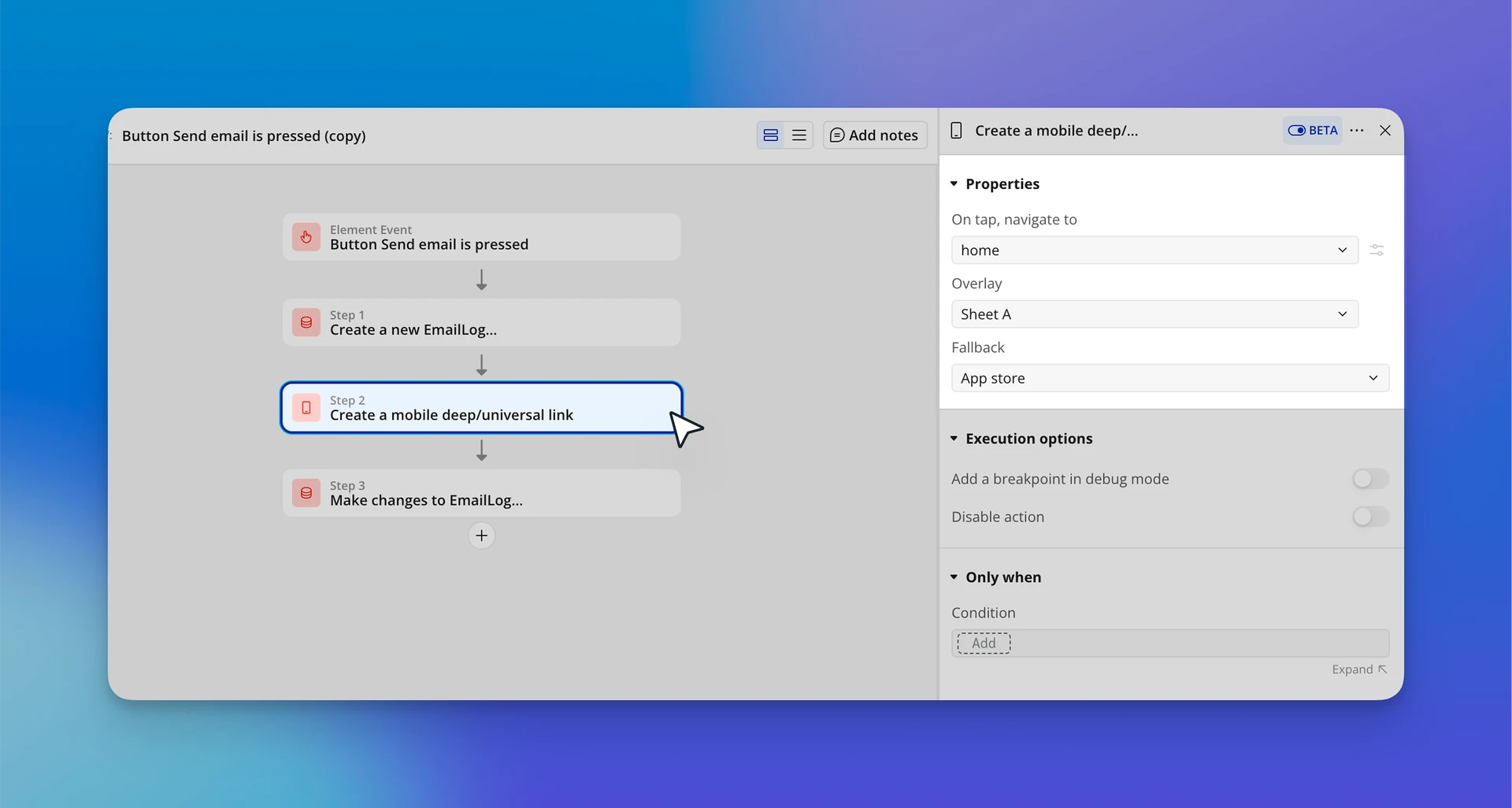
Then, use the Create a mobile deep/universal link workflow action. From there, you’ll set what happens if the app isn’t installed (either open a web page or open the app store) along with the destination to navigate to on tap.
Sign in with Apple
We’ve also added a Sign in with Apple component you can drag directly onto your page. It comes pre-formatted to meet Apple’s design requirements, with the workflows already connected so your users can create an account or sign in with their Apple ID without you building the OAuth flow yourself.
You’ll need to complete some setup in your Apple Developer console to get this working. Check out our full setup guide here.

Why this matters for App Store approval
Many builders don’t realize this at first, but if your app allows end-users to sign in through any third-party provider like Google or Facebook, Apple requires that you also offer Sign in with Apple. Apps that skip it can be rejected from the App Store.
This update also helps if you’re bringing an existing web app to mobile. If your users have been signing into your web app with Google for years but your mobile app doesn’t support it, they have no way in. Adding these sign-in options to mobile keeps your login experience consistent across platforms, so the users you already have can pick up right where they left off.
What about Google and other providers?
Sign in with Google is already possible today — you can set it up using the Sign in with an OAuth provider workflow action along with the native Google plugin. What’s new with this release is that Sign in with Apple is now built into that same workflow action, plus a dedicated visual component that comes pre-wired to it and pre-styled to meet Apple’s design guidelines.
We’re planning to expand the set of pre-built sign-in components over time, and we’ll share more as those come together.
Try them out
Together, these two features remove a lot of the invisible friction for your users because they can tap a link from anywhere and land in the right place, then sign in with the account they already use.
If you’ve been holding off on features like email campaigns or social login because of these limitations, now is a good time to revisit them.
As always, give these a try and let us know how it goes in the comments — your feedback shapes what we build next.
— Nick and the Mobile team