
Hi Bubblers,
My dev partner and I built this because other skeleton loaders require you to list the IDs of elements you want covered, sometimes require drawing matching shapes, and then come back to it whenever the layout changes. We wanted the opposite:
Drop one element on the page that scans the DOM automatically, draws shimmer placeholders that match the real layout, and updates them whenever the layout changes.
That is what this plugin does.
You can still, of course, exclude elements by ID or only apply the skeleton to the desired elements.
You may have multiple skeletons per page, each configured differently (ideal for single-page apps).
- Demo app
- See in Bubble Editor for the full range of customization options
- User documentation
- Plugin page
Here is the full features list:
- Inverse-by-default targeting: by default, the plugin scans the whole page and shimmers every visible element it finds. You exclude what should stay visible (typically the header, footer, navigation, some Floating Groups), instead of listing every element to cover. For pages with focused loading, you can switch to specific containers (reloading a Repeating Group after a filter change, for example).
- Real DOM scanning (not pre-declared shapes): the plugin reads your actual layout at runtime and draws placeholders that match the position, size, and corner radius of each element. If you redesign your page, the skeleton matches the new design without any change to the plugin configuration.
- Pixel-perfect placement: round avatars stay round, pill buttons stay pill-shaped, cards keep their corners. The plugin reads each element’s actual border-radius, position, and size, and replicates them. Override globally with one number when you want a uniform look across a mixed-radius layout.
- Live updates via MutationObserver: when your layout changes mid-load (a Repeating Group fills with cells, a conditional Group appears, a Floating Group toggles), the skeleton rescans and adapts within ~80ms. The shimmer is also anchored to the page, not the viewport: if a visitor scrolls during loading, the skeleton and the live content move together. This is the part that makes the plugin work for SPAs and dynamic content: a single mount handles the whole page lifecycle.
- Manual show / hide / refresh actions: workflow actions let you trigger the skeleton from any event: filter changes, tab switches, search submit, paginated fetches, custom workflow runs. This is standard for skeleton plugins, but our implementation gives you the same automatic DOM scan in both modes (page-load and on-demand): the skeleton looks identical whether it appears at first paint or 30 seconds later when the user changes a filter.
- Full workflow integration: three element actions (Show, Hide, Refresh), three exposed events (Skeleton Shown, Skeleton Hidden, Skeleton Error), three exposed states (Is Visible, Last Hide Reason with seven possible values, Display Duration in ms). Build perceived-performance analytics, react to the skeleton lifecycle, gracefully fall back when a strategy fails. Container IDs and Excluded Element IDs both accept Bubble dynamic expressions, so your skeleton can react to Current User, custom states, or any other data source.
- Four loading detection strategies: auto-detect DOM stabilization (drop and forget), fixed duration in milliseconds (deterministic look), manual hide via workflow action (full control), or fixed minimum + manual hide (guaranteed display time with early exit when your data is ready). A safety cap prevents stuck skeletons; a configurable minimum display time prevents the “flash of skeleton” effect on fast loads.
- Three disappearance modes: all-at-once, wait-for-repeating-groups (skeleton stays up until every RG has rendered its first cell), or progressive-by-section (each top-level section fades independently as it loads, which is what Facebook feed does).
- Empty Repeating Groups stay informative: synthetic placeholder cells (typically 3 fake rows or columns) reserve the space and signal “data is loading here”, instead of an empty rectangle that abruptly fills mid-load. The skeleton swaps to real cells the moment Bubble inserts content.
- Four animation styles: shimmer wave (the classic Facebook / LinkedIn look, a highlight band sweeping across each block), pulse (soft fade in and out, less distracting on long-loading pages), fade (one-time fade-in then static, lowest CPU), and static (no animation, automatically used when the user has Reduce Motion enabled at the OS level).
- Three density modes: coarse for the canonical Facebook / LinkedIn / YouTube look (one shimmer per card silhouette), medium for the typical Bubble layout where cards with images break down into image plus text shimmers, and fine for maximum granularity (every text, icon, and button as its own rectangle). Plus an auto mode that picks medium and falls back to fine on sparse pages.
- Frame preservation: parent containers (the page itself, your hero card, your section wrappers) keep their background, border, and box-shadow during loading. Only the descendants are flattened. This matches the canonical pattern from Facebook, LinkedIn, and YouTube, where the layout structure stays visible and only the content placeholders shimmer.
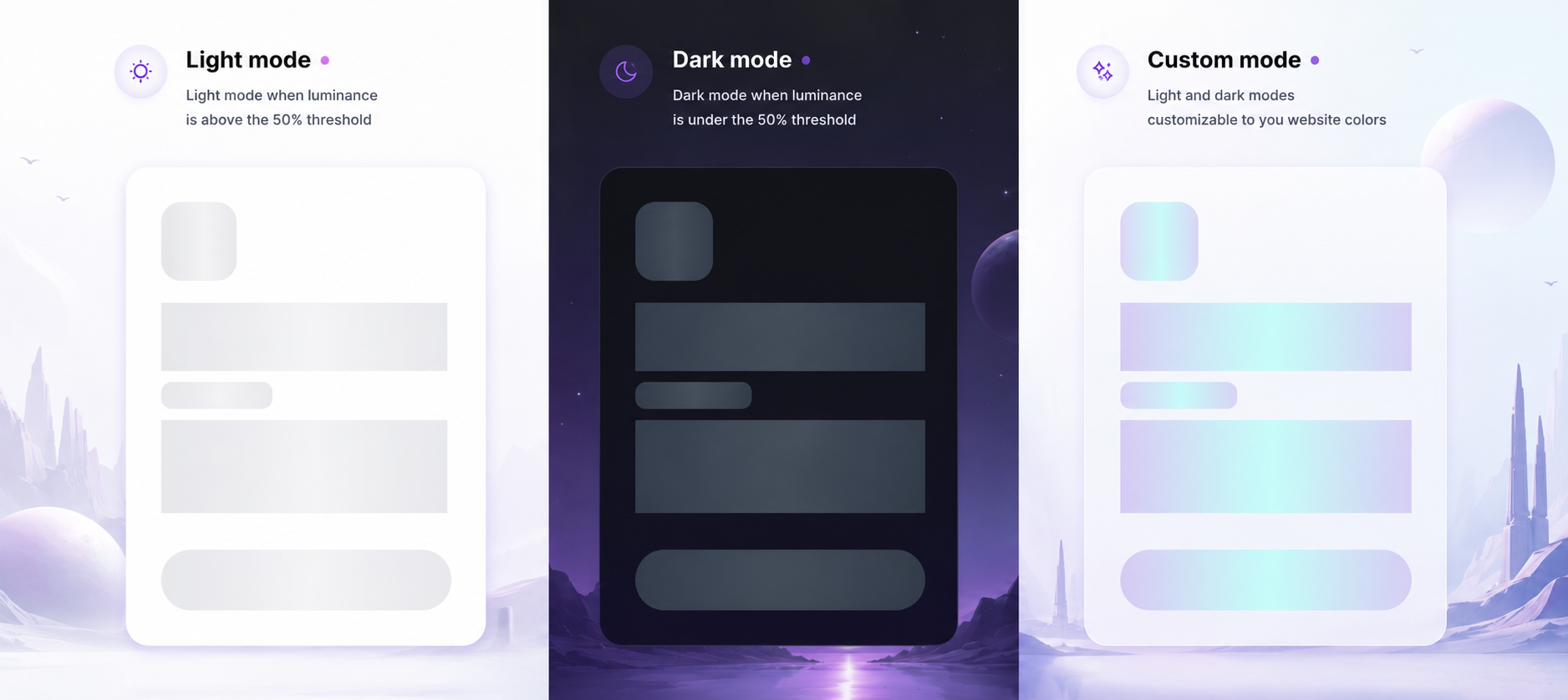
- Auto light / dark mode: the plugin reads your page’s actual background (solid or gradient) at runtime and switches between light and dark shimmer palettes when luminance crosses 50%. You can override the colors entirely or disable auto-detection and lock to one palette.
- Smart handling of Bubble specifics: the plugin recognizes Bubble Tables, populated and empty Repeating Groups, the Bubble Page element, and atomic visual elements like Image and Button (one shimmer per element, no double-rendering). Floating Groups outside the scan area are automatically promoted above the skeleton overlay so visitors can keep navigating during loading; the original z-index is restored on hide. Map and chart plugins are recognized as single opaque units. Bubble’s native loading bar is hidden while the skeleton is visible.
- Improves Core Web Vitals (CLS): reserving space with placeholders eliminates the content jumps Google has been ranking against since 2021.
- Accessibility: ARIA live regions announce the loading state to screen readers. The animation downgrades to a static placeholder when the user’s OS has Reduce Motion enabled.
AI-assisted setup
The plugin ships with a context document designed to be pasted into any LLM assistant. Once pasted, the assistant has every plugin field, event, and action in scope and can recommend configurations for your specific use case, write Bubble dynamic expressions for Container IDs and Excluded Element IDs, diagnose console output, and suggest patterns for combining multiple skeletons on the same page.
The link is in the docs, in the “Get help from an AI assistant” section, and at the top of the demo page.
We also built the user documentation we wish every Bubble plugin had.
Feedback welcome
If you notice a bug, a weird interaction with a third-party plugin, or there’s a specific business case you’d like the plugin to cover, don’t hesitate to reach out. We happily take any question or improvement request. Plus, we react quickly!


