🎙️ New Plugin Release: Audio Recorder Pro Bubble Mobile

Hi Bubblers! :waving_hand:

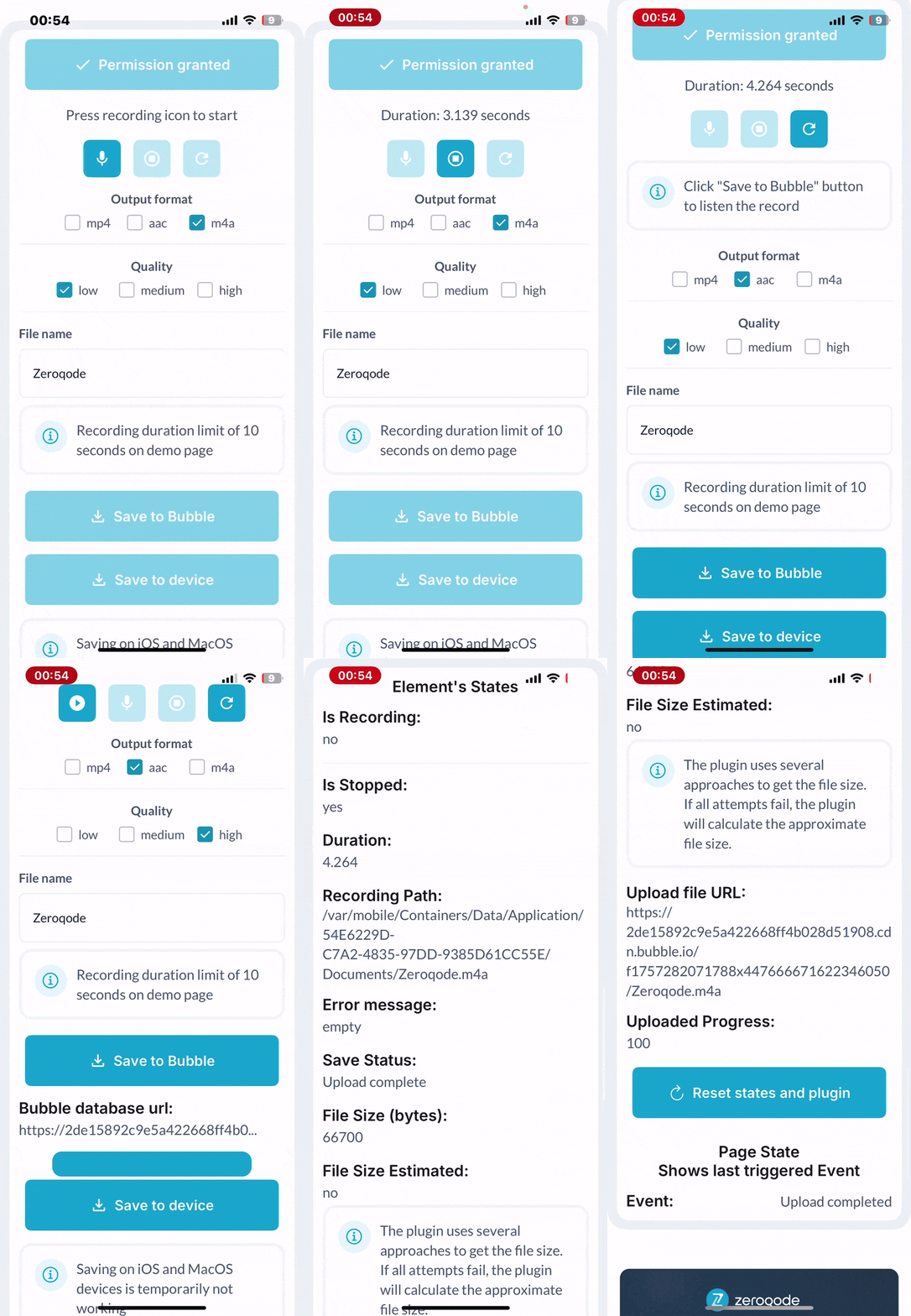
Introducing the Audio Recorder Pro Bubble Mobile plugin - a professional, easy-to-use solution for recording high-quality audio directly inside your native app.

gif44 Animated GIF Optimizer

:sparkles: Key Features:

  • High-Quality Recording: Capture audio in .aac, .mp4, and .m4a (IOS) formats.
  • Customizable Controls: Personalize the look and feel of the recorder to match your app’s design.
  • Adjustable Quality Settings: Control the recording quality to balance file size and sound fidelity.
  • Workflow Integration: Seamlessly save, store, and play back recordings within your Bubble workflows.

This plugin is perfect for apps that need built-in voice capture - from messaging tools and note-taking apps to reporting and social platforms.

:backhand_index_pointing_right: Demo | Documentation

Add professional audio recording to your app with just a few clicks and give your users a powerful new way to share their voice.

Levon Terteryan
Founder @ Zeroqode

Browse all Zeroqode Plugins for bubble
Banner_Last3

2 Likes

Hello,

I recently purchased your two plugins, Audio Recorder and Audio Player, for the native app.
I can’t manage to link them together. What I want is to take the recording made with the Audio Recorder and play it directly in the Audio Player.

The goal is to get the audio file right after recording so that I can listen to myself and decide whether I want to save it or not.
On the web, I used to do this with “save to data URL”, but I can’t find the equivalent here.

Hello @antoine.goffard,

Thank you for your inquiry regarding the Audio Recorder Pro and Audio Player plugins for your mobile app.

To preview a recording directly in the Audio Player without permanent saving here are some suggestions to try:

  1. Disable auto-save options (“To Device” and “To Bubble”) in the Audio Recorder element.
  2. After stopping the recording (via workflow action), use the exposed state “recording Path” from the Audio Recorder.
  3. Set the Audio Player’s “Audio Source” field to the Audio Recorder’s “recording Path” value (as a text URL).
  4. Trigger playback using the Audio Player’s “Play” action.

This allows temporary local playback for review. If approved, manually trigger “Save To Media Library” or “Upload to Bubble” actions.

If issues arise, share your workflow setup for further assistance.

Best regards,
Support Team
Browse all Zeroqode Plugins for Bubble
Banner_Last3

Hi @antoine.goffard,

Just checking in to see if you had a chance to try the setup we suggested for previewing Audio Recorder Pro’s recordings in the Audio Player element.

Did it work out for your use case?

If not, could you please share some screenshots of your setup and more details, so we can better assist you?

Best regards,
Support Team
Browse all Zeroqode Plugins for Bubble
Banner_Last3