
But wait… there’s more! Another lil’ update: I found this very interesting approach to doing an element-based “ready” type function:
Using the technique described there, you can do some pretty interesting things. First, here’s the script of the mutation observer function described in the article (with a lil’ change to make it work the way we need it to for our purposes in Bubble):
<script>
// mutation observer ready thing:
(function(win) {
    'use strict';

    var listeners = [],
    doc = win.document,
    MutationObserver = win.MutationObserver || win.WebKitMutationObserver,
    observer;

    function ready(selector, fn) {
        // Store the selector and callback to be monitored
        listeners.push({
            selector: selector,
            fn: fn
        });
        if (!observer) {
            // Watch for changes in the document
            observer = new MutationObserver(check);
            observer.observe(doc.documentElement, {
                childList: true,
                subtree: true
            });
        }
        // Check if the element is currently in the DOM
        check();
    }

    function check() {
        // Check the DOM for elements matching a stored selector
        for (var i = 0, len = listeners.length, listener, elements; i < len; i++) {
            listener = listeners[i];
            // Query for elements matching the specified selector
            elements = doc.querySelectorAll(listener.selector);
            for (var j = 0, jLen = elements.length, element; j < jLen; j++) {
                element = elements[j];
                // Make sure the callback isn't invoked with the
                // same element more than once
                if (!element.ready) {
                    element.ready = true;
                    // Invoke the callback with the element
                    listener.fn.call(element, element);
                }
            }
        }
    }

    // Expose `ready`
    win.ready = ready;

})(this);

// REGISTER whatever elements we want using CSS selectors:

ready("**_some_css_selector_**", function(element) {
    console.log(element.id, ' is ready!!!!');

});
</script>
That part at the bottom is how we tell the script what page elements (DOM elements) we want to keep an eye on.
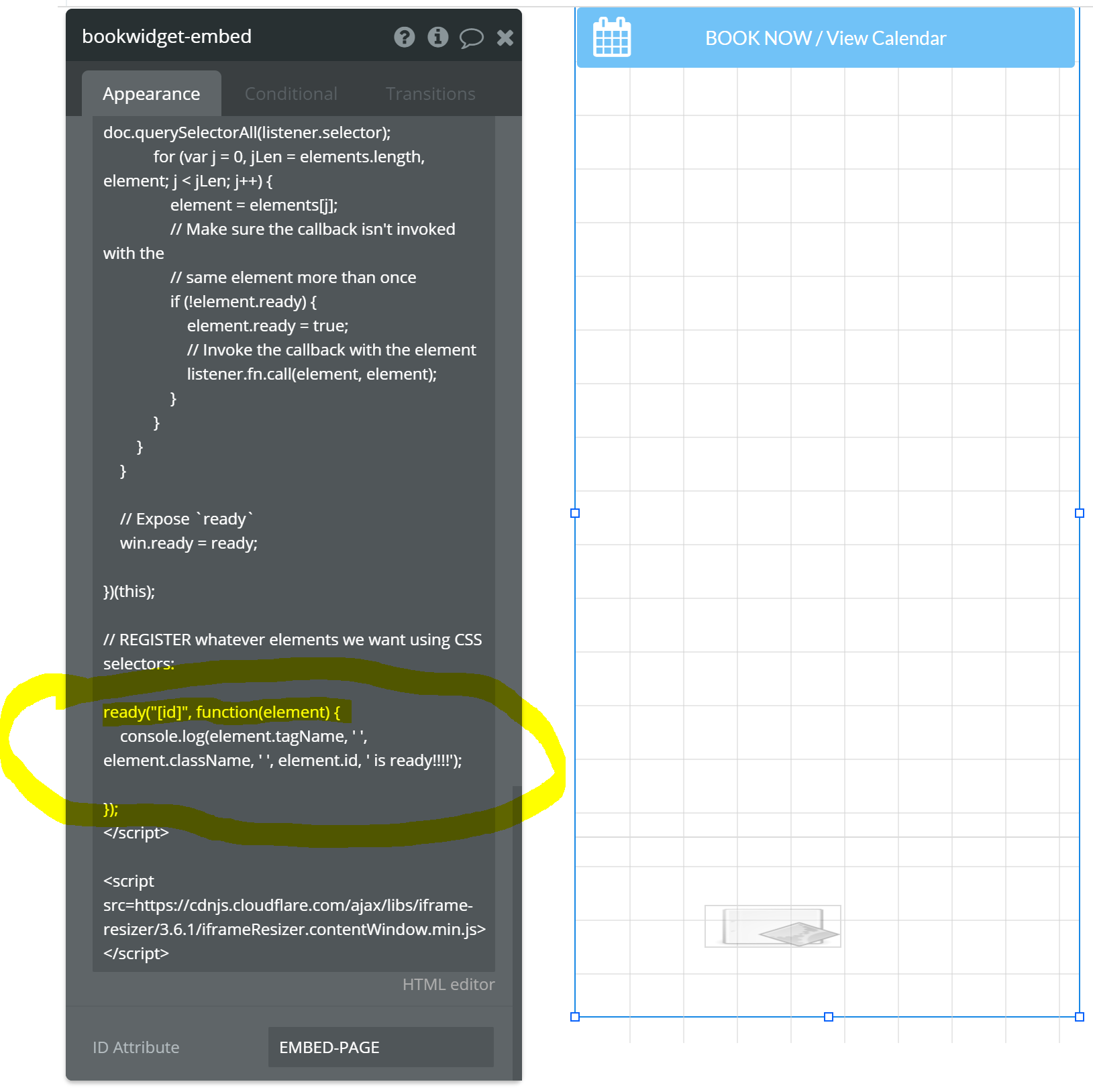
Let’s start by registering EVERY darn element on the page. If we make the some_css_selector “*” we’ll get all elements. Or if we set it to “[id]” we’ll register everything that has an id set. So let’s do that:

… here’s the bottom part of that:
The output of the console will now show us the order that things (with explicitly set ids) become ready on the page:

Scrolling to the bottom of the console, we can see that in fact it is “clickDay 42” is pretty much the thing that becomes ready last. So, if we’re interested in anything, that’s probably it:

OK! So now we could alter things and just register that one thing to keep an eye on:
    ready("#clickDay-42", function(element) {
        console.log(element.id, ' is ready!!!!');
[Quick aside: I changed the way I did the identifier because whitespace in CSS ids is problematic. So it’s not a typo, I just changed from a space to a dash. Don’t get spun.]

The console output now looks like so:

So we could do other things now, like push that value back up into Bubble using a JavaScript to Bubble element:
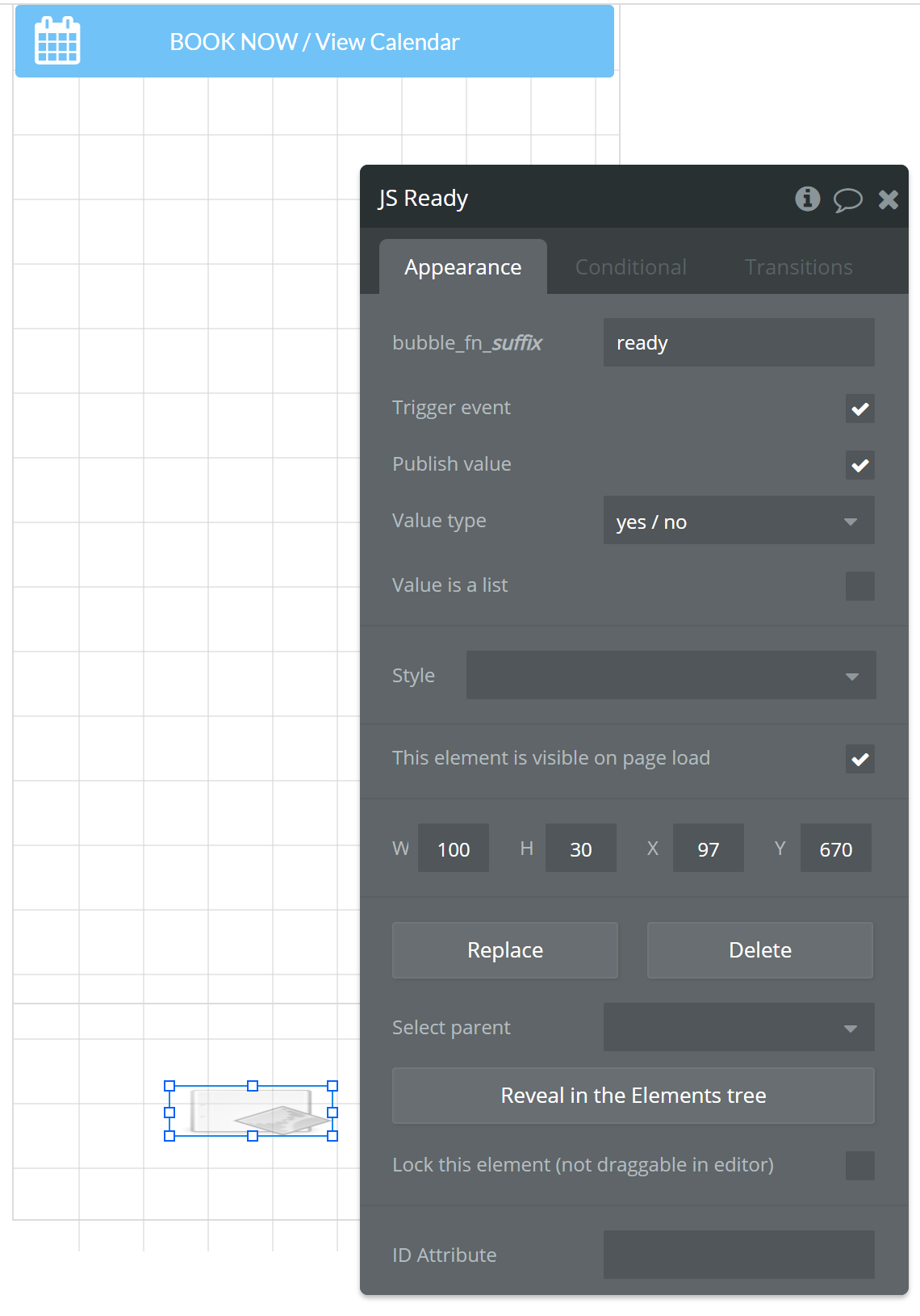
… and change our function to:

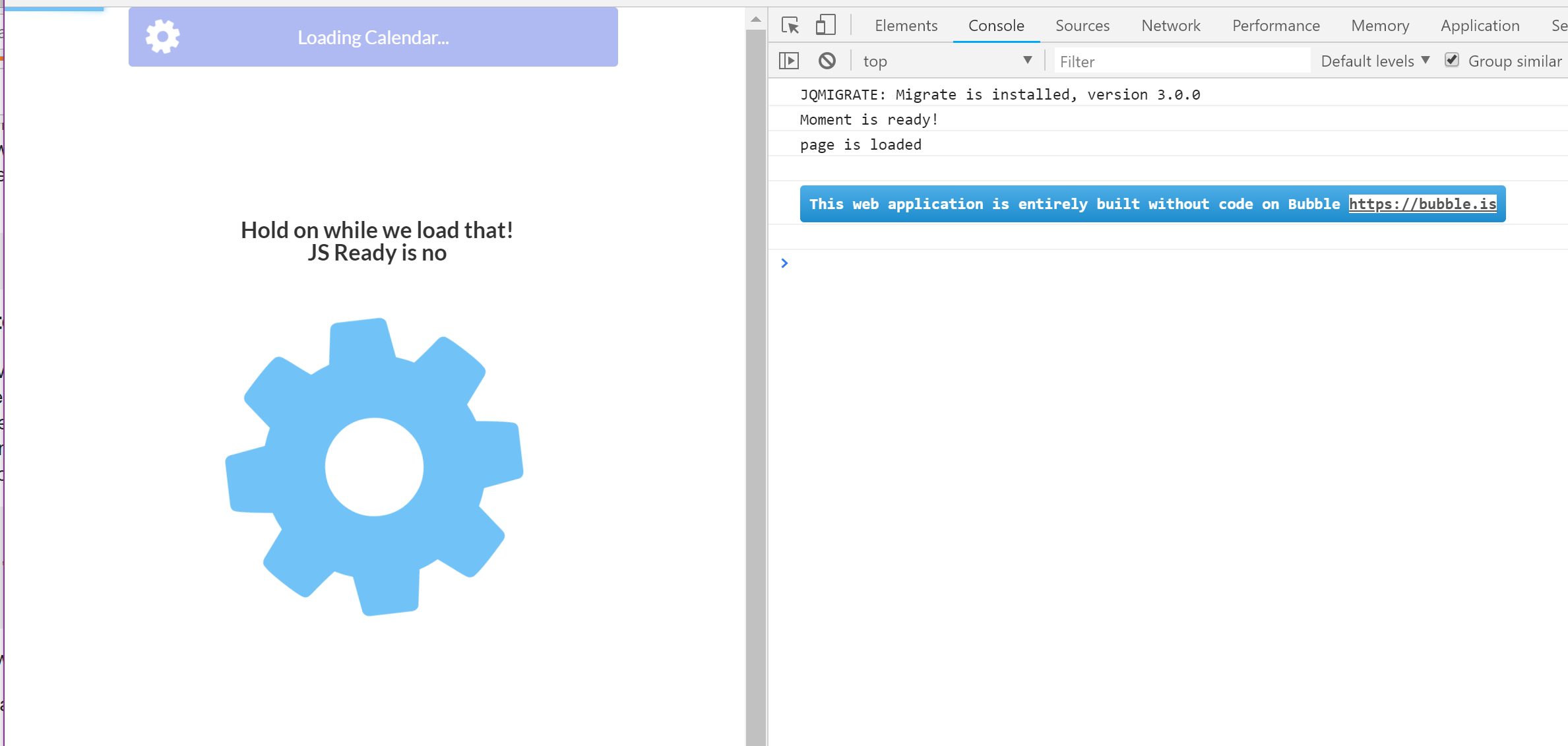
Now Bubble knows when that element is ready, too! We could take action on the trigger produced by the JS Ready (JavaScript to Bubble) element. Maybe hide a loading indicator or something, right?

While loading…
Once loaded…
