I’m a big time newb but this site and the lessons have been so helpful.
I have the first rough rough draft template built for my product.
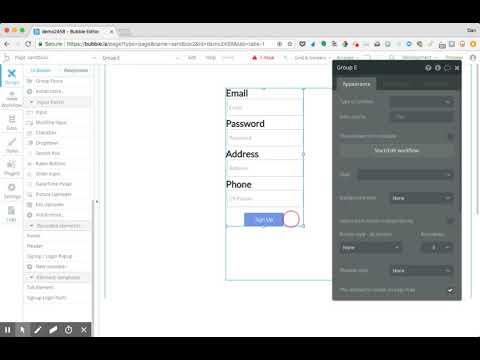
Have a few questions - but just to start - How do you take the reusable element ‘Signup / Login Popup’ and incorporate that onto a new page? I opened a new page and then selected the reusable element from the design section. I then drew a long rectangle inside the mobile template space. When I let go the reusable element comes up but it does not stick to the page. How do I make it stick and stay on that page?
Any help here is greatly appreciated. I could make my own but it won’t be as pretty.
It’s a popup so you show and hide with workflows. Examine how it’s used in the Header element that the wizard built for you. Open THAT header reusable and see how it itself includes the login popup. Workflows on the login/signup buttons in the header do the showing and hiding as you’ll see.)
(And since it’s already in the header, you probably don’t need to drag it into your page btw.)
Here’s a video that expands on how to use the Sign a user up process. Bubble’s pre-built component is designed as a popup, but you can re-create this from scratch fairly easily when you get the hang of it.
Note: if something is designed as a reusable element that is also a popup, it will always be a popup. But you can change it by going directly to the reusable element and changing the “Type of element” to a group. (Just remember, this will convert all instances into a group).
@keith I feel like how my mom must feel when I tell her how to make a google spreadsheet - and find it again.
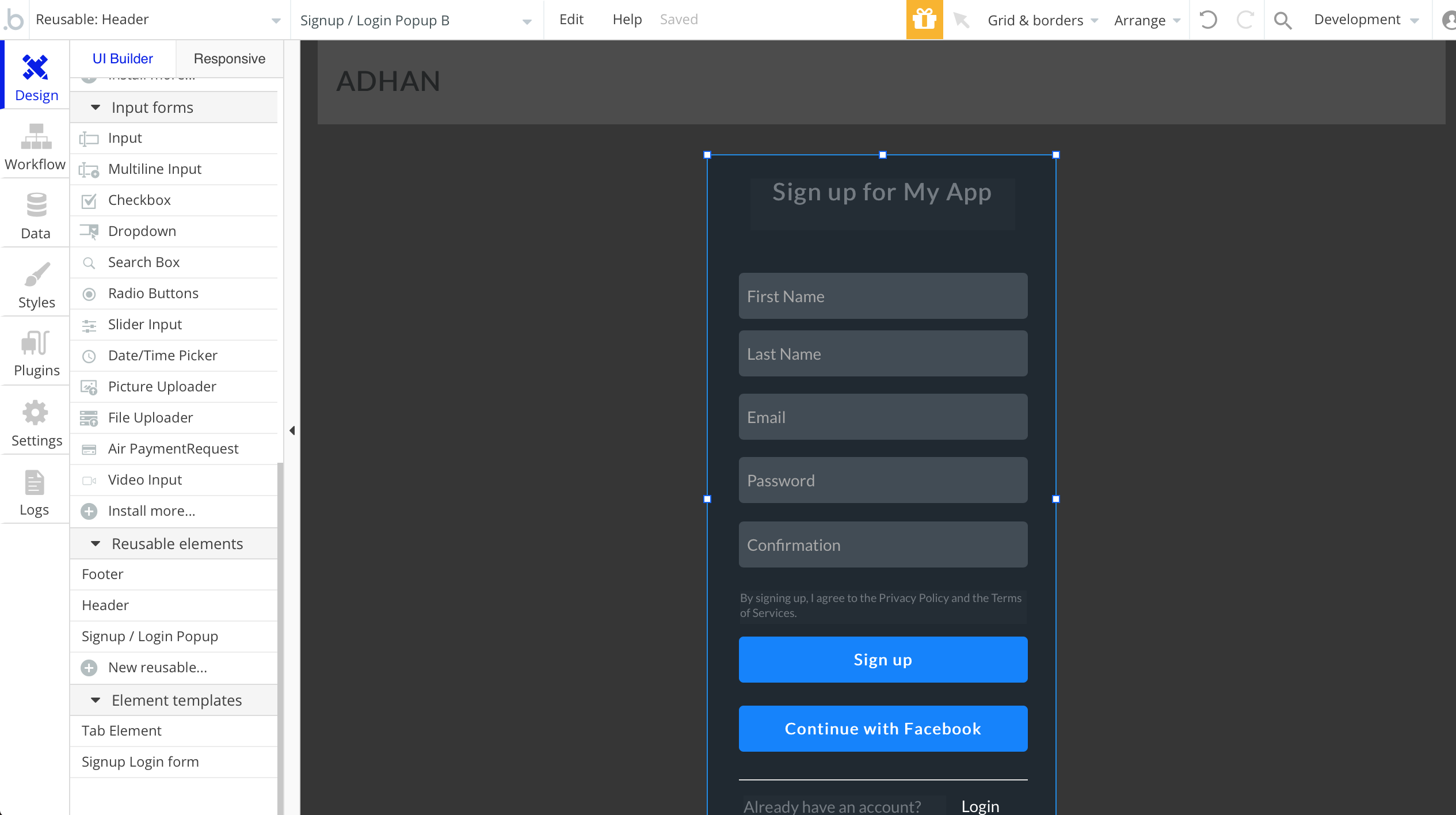
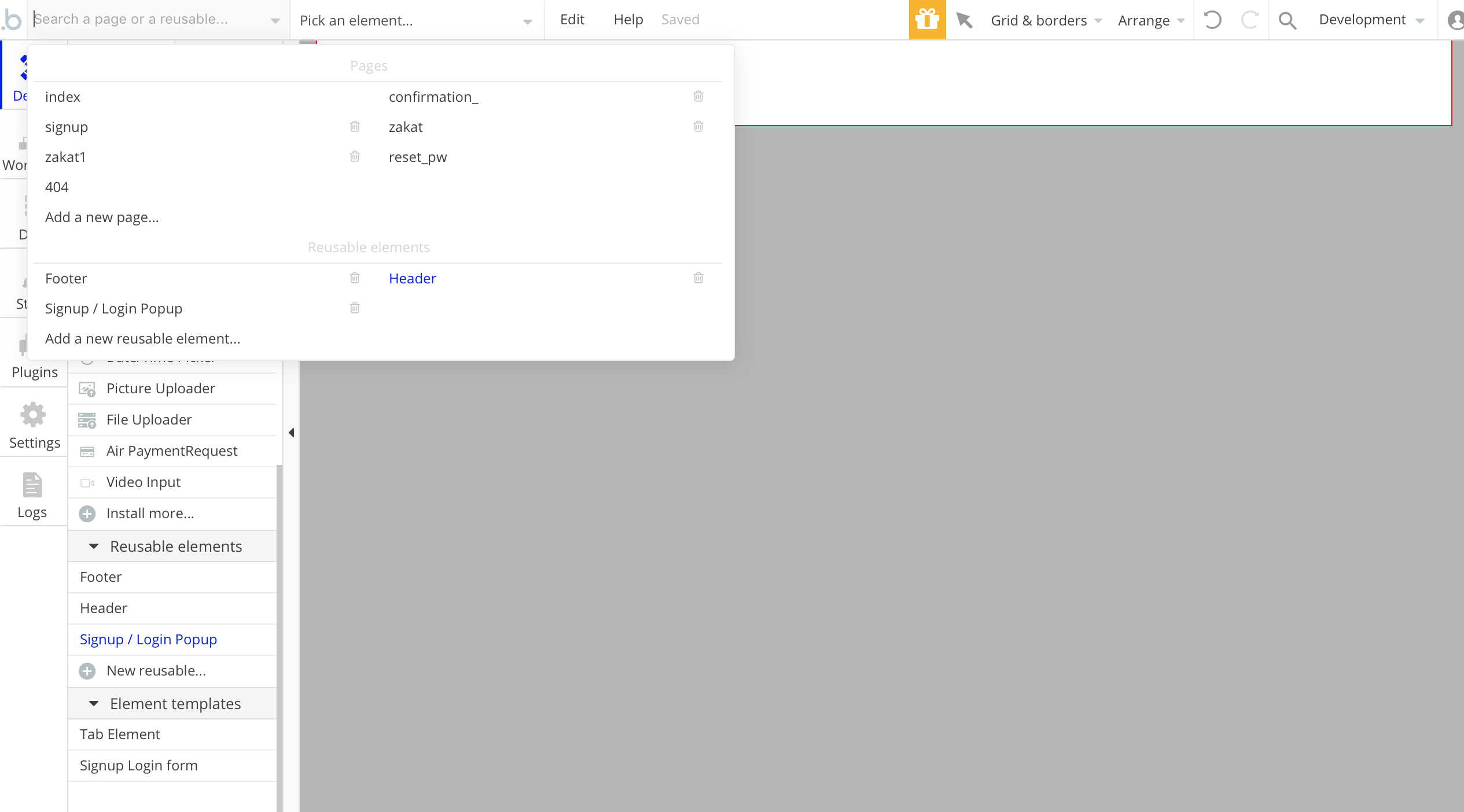
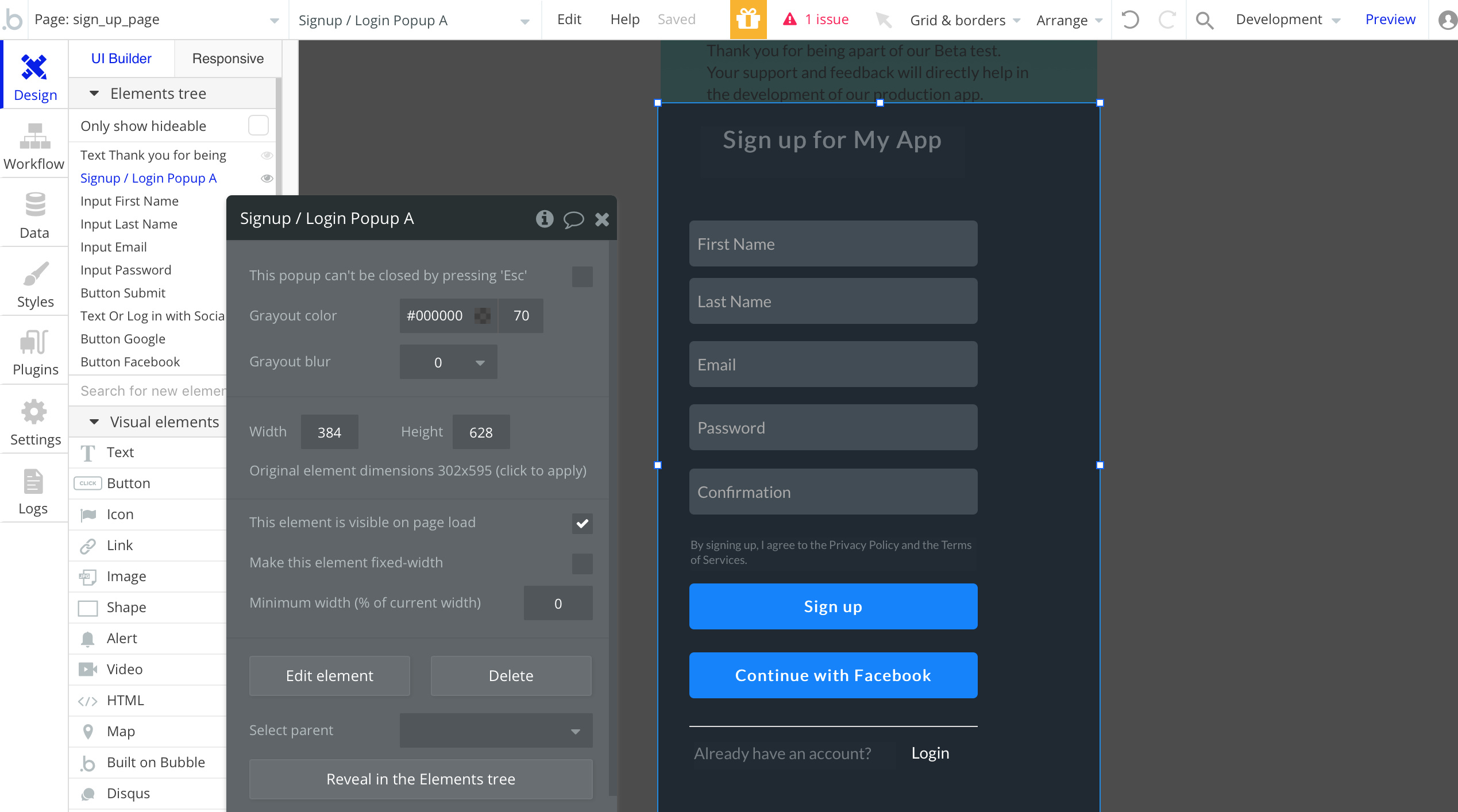
Thank you for your assistance. Still surprisingly having trouble with with your explanation though. I added some photos of my work to give you some context of what I see.
I’m hoping to make the sign up template come up prior to seeing the youtube video. I’ve already created a sign up page but my design abilities aren’t too strong - so I was interested in using the template for appearance purposes.
As you’ll see when I go into the header section there is nothing really there. And then when I add the pop-up, it doesn’t stay. I don’t see a wizard for it.
On the Header page, look at the Elements Tree. There are hideable elements there. Namely, the LOGIN/SIGNUP buttons and the popup. My own header element is based on the Wizard-provided header as well. See the image below.
To see these hidden elements, click on them in the tree. Note that the sign-up/login popup ITSELF has hideable elements (that is, it has different layouts for sign up and login mode. Depending upon what button is clicked in the header, a workflow sets a state in the pop up to tell it whether it should be showing the login version or the sign-up version.)
You’ll note that the area in the upper right of the header is showing a couple of groups simultaneously (these are “on top” of each other… in run mode, these are never shown at the same time – so that’s how the look of your header gets changed in run mode.)