Hey @tomo.hitoma.bubble , I’m looking into integrating the toggle feature in BlockNote (outside of Bubble) but ran into a blocker where I cannot nest blocks inside a custom toggle block. I noticed your plugin includes this functionality, and I’m curious how you managed it?
Did you manage to do this purely with BlockNote or did it require some workarounds? If you’re open to chatting about it, I’d really appreciate any insights!
Hi there, and thank you so much for your interest!
The feature has already been tested locally, and I’m currently working on the integration with Bubble.
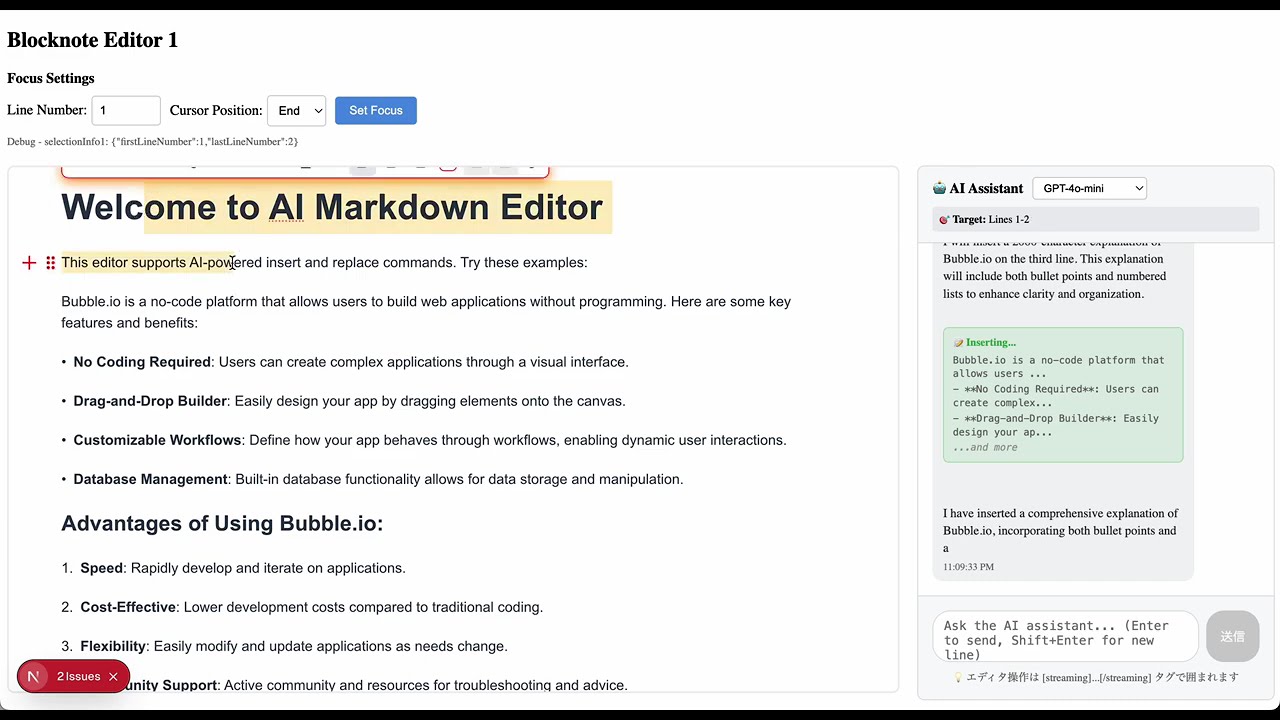
Here’s a demo video of the plugin running in a local environment:
Note: The chat panel on the right is for local testing only and is not included in the plugin.
Using Bubble.io’s API streaming functionality, users will be able to freely use their preferred AI models and prompts.
By including tags like [streaming], [insert], and [replace] in the AI response, and passing properties such as isStreaming and isDone from Bubble, streaming responses become possible.
In addition to options like dialog width, color, and accept/reject buttons, I’ve also added support for specifying the left value of the sidemenu, which was previously requested.
Final testing is underway, and I’m planning to release it next week.
Please stay tuned!
Hi Bubblers! I’m excited to introduce BlockNote (Markdown Editor) with new AI features (Beta)!
This update brings real-time AI-powered editing capabilities to the BlockNote Editor.
heyy! How about custom blocks? Can we be able to customize block names, add/delete blocks…? It will be awesome to customize it and adapt it more to each use case
Custom blocks like Toggle, Callout, and Divider already support renaming and showing/hiding in the current plugin. The same also applies to standard blocks like headings, paragraphs, bullet lists, and more — you can customize their labels or disable them entirely.
Yes, a trial is available!
If you share your app ID, I can set up free access for two weeks.
You can find the app ID in the URL of your Bubble editor — it appears after id= (e.g., bubble.io/page?id=your-app-id).
If you have any questions, feel free to reach out!

 I’m excited to introduce BlockNote (Markdown Editor) with new AI features (Beta)!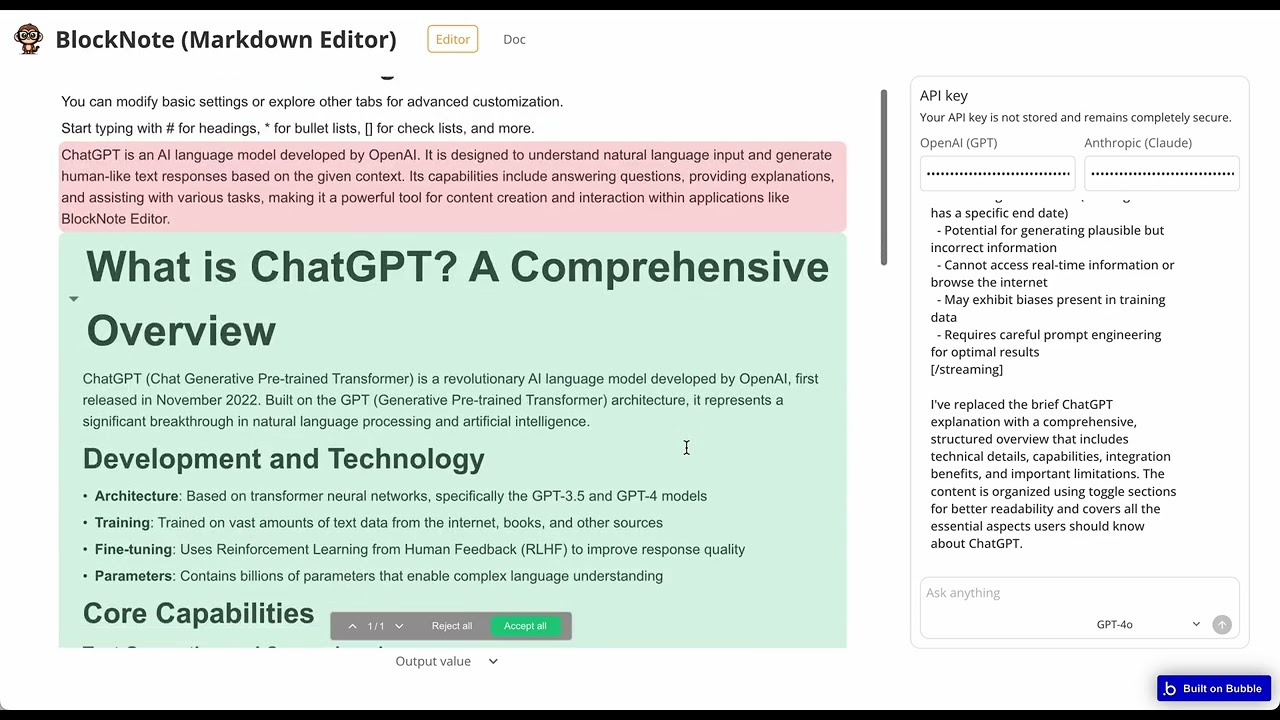
 Demo app:
  Editor here:
  Plugin page:
  Key Features
 For setup instructions, please refer to the documentation:
 You can freely customize the AI dialog, diff highlights, and button styles to match your app.
 The plugin is still in active development, so feel free to share any bugs or suggestions!
