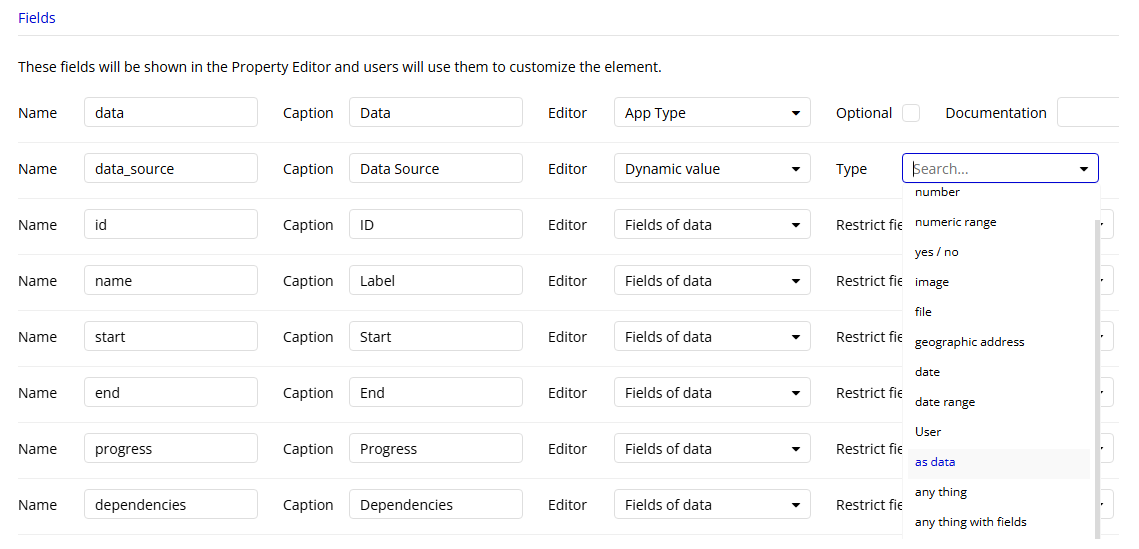
Hi everyone,
I’m currently developing a Bubble plugin and would like to ask for some help regarding how to define a plugin field properly.
What I want to achieve is similar to what Bubble has done in their official Chart Element plugin.
Reference: Chart Element - Bubble Manual
In the plugin’s settings dialog, when you select a Type of data such as User, the Value expression and Label expression fields show Current point (More...). In this context, Current point represents an individual User.
However, I’m not sure where or how the point context (i.e., Current point) is defined or injected in the plugin editor.
Also, if you clear the field, you can still select Current point at the top of the dynamic list.
I’d like to implement the same behavior in my own plugin, but I’m not sure how to define this in the plugin’s Fields section.
Could anyone share how to configure the plugin fields to enable this Current point behavior based on the selected data type?
Thank you in advance for your support!
Best regards,
Yoey
Here is a screenshot of the settings dialog where
Current point appears.
I’m still unsure how to define or inject the point context properly in my plugin.
I also don’t know how to make Current point appear at the top of the dropdown list like in Bubble’s Chart Element plugin.
Does anyone have any insights on this?
Any help would be greatly appreciated!
Hello @xxyo1xx
See the image:
It’s simple.
– You need to define the “Type of data.” (User, Task, Project…)
– Inform the data source of the “Type of data” in the “Data source” field (Search for…).
That’s it! From now on, Bubble knows which table and which items (data) it will use to display in the chart. What you configure/define in the fields below will be understood by Bubble as each unique/individual item in the list defined in the “Data source” field.
Did I understand your question?
Let me know if this helps. 
Thank you very much for your reply!
I tried what you suggested, and it definitely helped clarify some things.
However, I think what I’m trying to achieve is a bit different—sorry if I didn’t explain it clearly enough before.
What you explained seems to be about setting the Data source field to a list of the type defined in Type of data, which makes perfect sense.
But what I’m trying to figure out is this:
When a plugin user selects an App type in the Type of data field, I want the Value expression field to automatically display Current point (More...), just like in Bubble’s Chart Element plugin.
More specifically:
- How can I make
Current point appear at the top of the dynamic value dropdown?
- Where and how is the
point context actually defined?
That’s the part I still can’t figure out.
Any ideas or hints would be truly appreciated!
I wasn’t able to get a final answer from the forum, but I’d like to close this topic by sharing what I learned.
It seems that Bubble-made plugins like the Chart Element have some internal customizations that are not available to general plugin developers. So we probably can’t replicate their exact behavior.
However, I found a way to achieve a similar outcome using plugin Fields configuration:
- Type of data
- Name:
type_of_data
- Editor:
App Type
- Data source
- Name:
data_source
- Editor:
Dynamic value
- Type:
as type_of_data
- Is a list: ✓
- Value expression
- Name:
value_x
- Editor:
Fields of type_of_data
- Restrict field type to:
number
- Is a list: ✗
- Label expression
- Name:
value_y
- Editor:
Fields of type_of_data
- Restrict field type to:
string (depending on use case)
- Is a list: ✗
Explanation:
Type of data defines the type of data to work with.Data source provides a list of that data type.Value expression and Label expression let the user choose fields from that type to use in the plugin.
Using this setup, I was able to get lists of values from the Data source inside the update function and display them as expected.
Although we can’t use Current point like Bubble’s built-in plugins do, this approach worked just fine and gave me the data I needed.
This method is exactly what @tulioportela suggested—thank you so much!
Thanks again. I hope this helps someone else in the future.