
Hey all!
If you’ve ever wanted to enable live transcription for video calls in your Bubble app, this step-by-step guide will show you how to set it up using the Daily service and the plus version of the Daily Plugin.
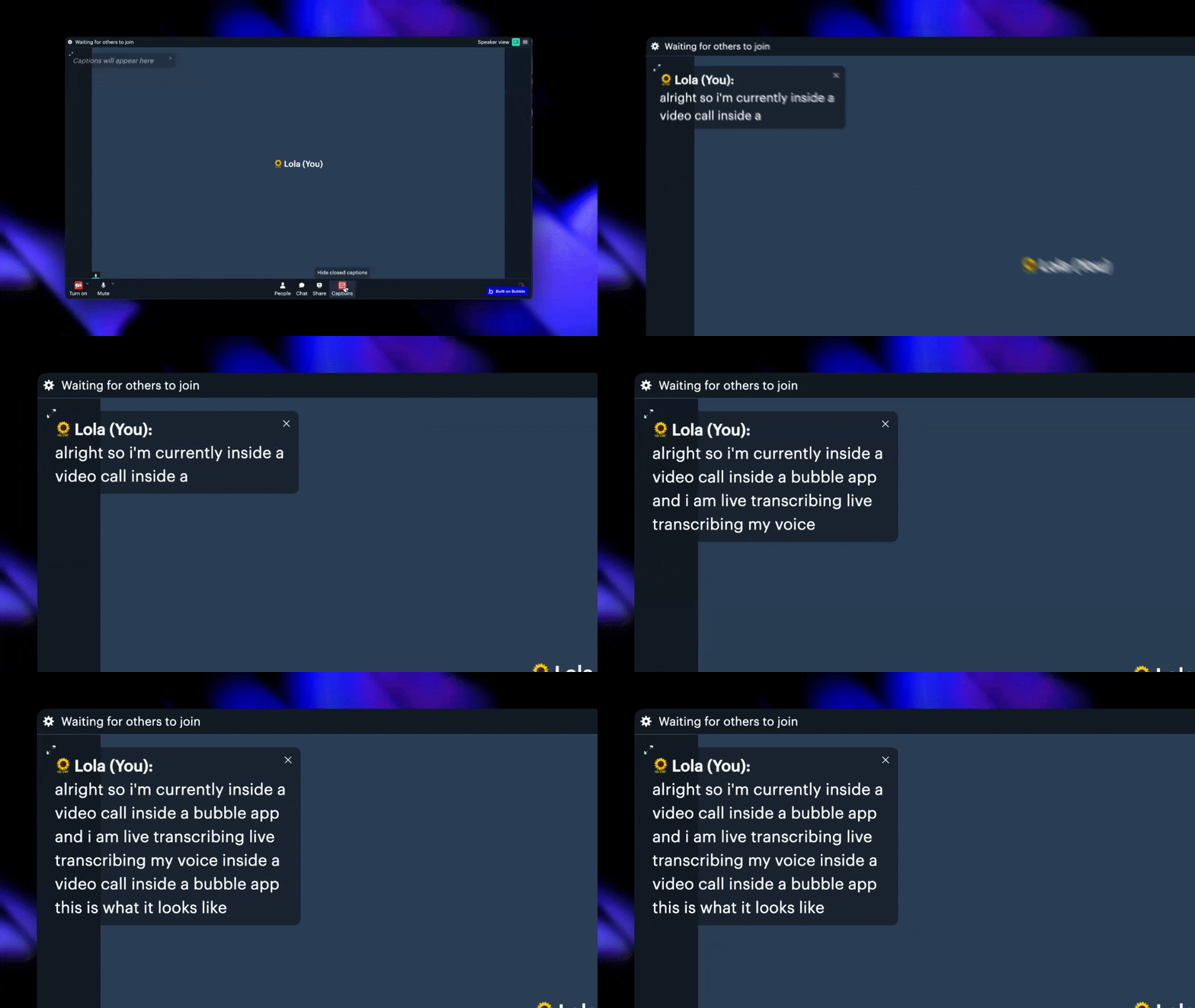
Here’s how to set it up:
1. Install the Plugin
- Install the Daily Video & Audio PLUS Plugin from the Bubble Marketplace.
- Create a Daily Account: Sign up for an account on Daily.
- Get Your API Key: Visit the Daily Developer Dashboard to retrieve your API key.
- Add Your Credit Card: Since transcription is a pay-as-you-go feature, add your credit card to your Daily account to enable it.
- Configure the Plugin: In your Bubble plugin settings, enter the API key, starting with
Bearer(e.g.,Bearer 4ffad...).
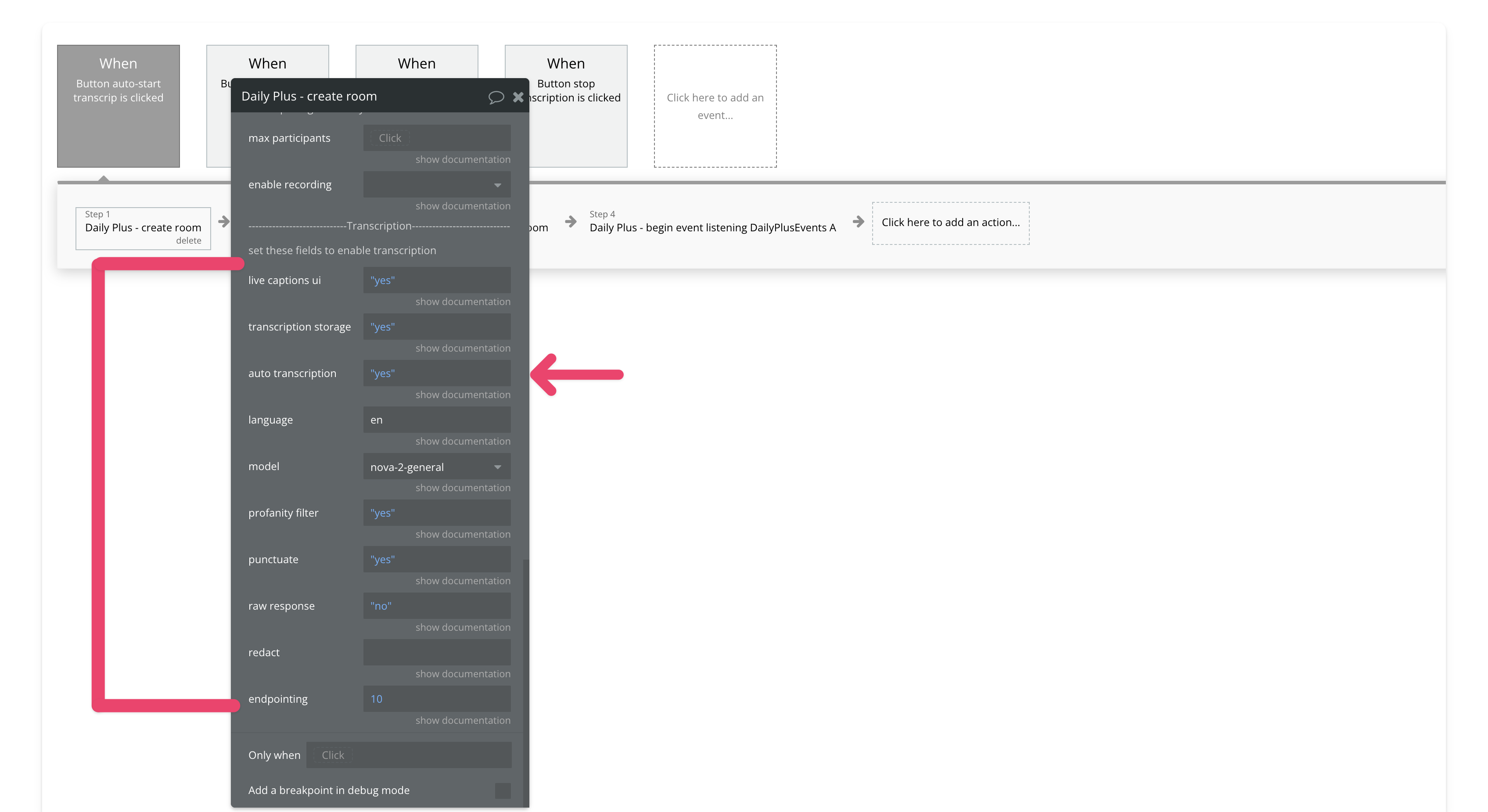
2. Enable Transcription in Your Room
Create or update a room in Daily and set the auto transcription field to yes. For detailed transcription settings, refer to the documentation.
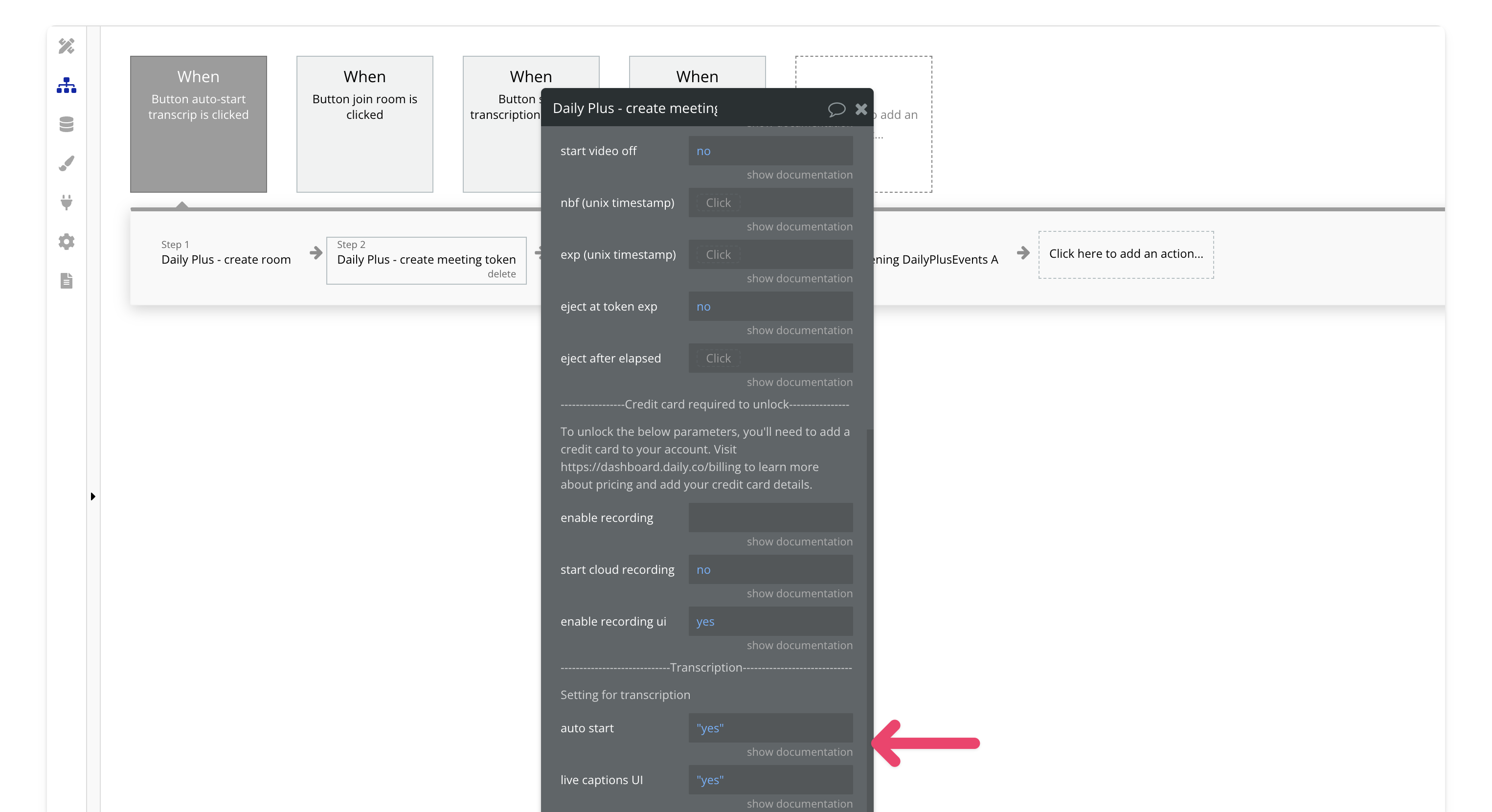
3. Create a Meeting Token for the Transcription Owner
Create a meeting token, set the is owner field to yes, and enable auto-start transcription. Only meeting owners can initiate transcription. You can also enable live captions if needed.
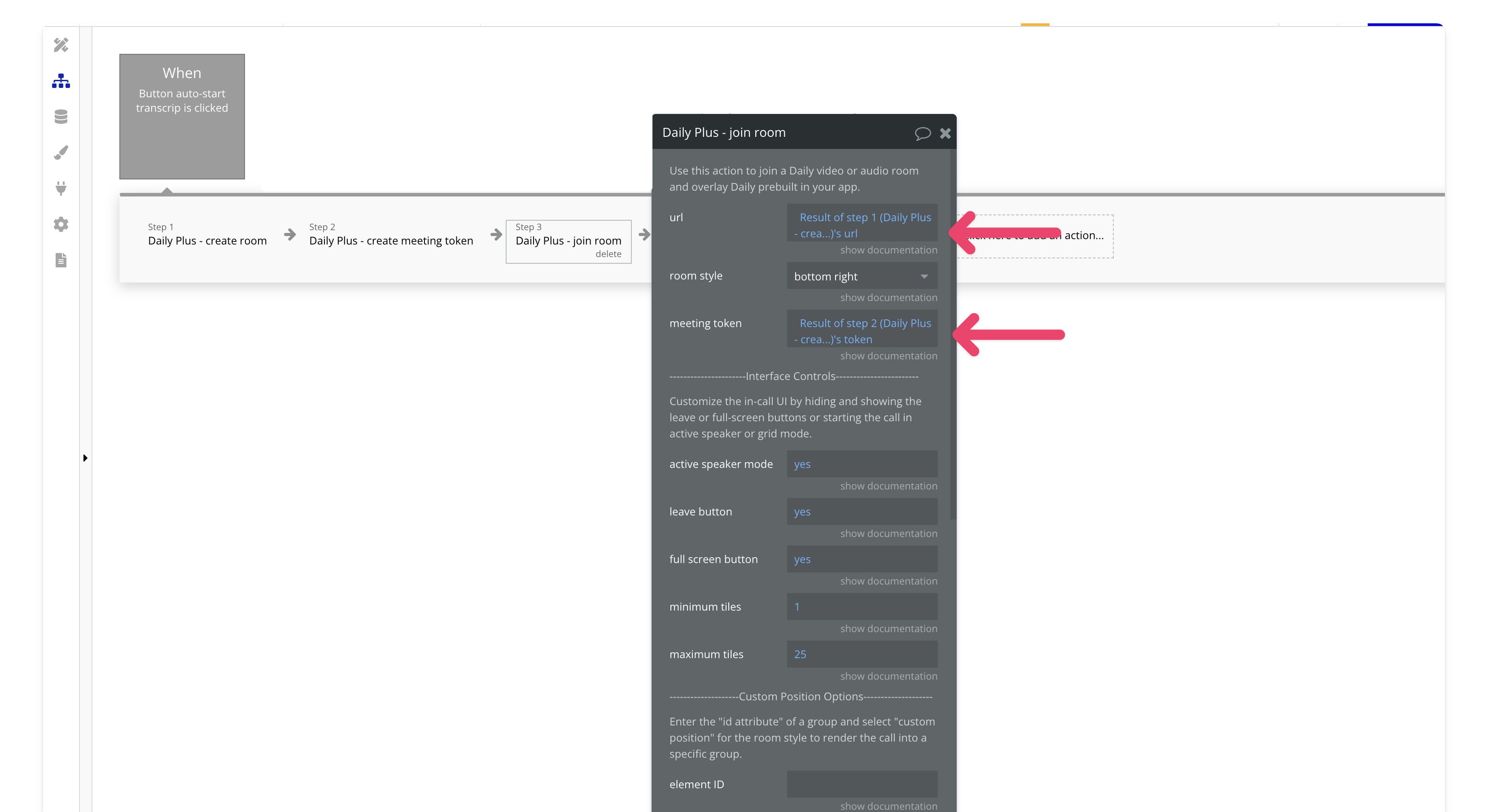
4. Join the Meeting
Join the room using the room URL from Step 2 and the meeting token from Step 3. This will activate live transcription for the meeting.
And that’s it! You’ve now set up live transcription for video calls in your Bubble app. If you try this out, feel free to share your experience, and if you prefer a video walkthrough, here’s a video.