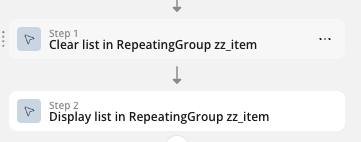
I had tested it before using clear list and then display list, and that worked fine, but yes, the other (and better) way is using Run JavaScript.
Here’s the JavaScript code I made for the Run JavaScript action (Toolbox plugin). It should help you:
// param1 = dropdown IDs (e.g., "dd_1, dd_2" or "dd_*")
// param2 = value to apply (if empty/undefined/null -> clear)

(function () {
  // --- parameter intake ---
  const idSource = properties && properties.param1;
  const rawIds = String(
    Array.isArray(idSource) ? idSource.join(",") : (idSource ?? "")
  )
    .split(/[\n,]/)
    .map(s => String(s || "").trim())
    .filter(Boolean);

  const desired =
    properties && (properties.param2 !== undefined && properties.param2 !== null)
      ? String(properties.param2)
      : "";

  // --- helpers ---
  function fire(el, type) {
    try { el.dispatchEvent(new Event(type, { bubbles: true })); } catch(_) {}
  }

  // Return ALL elements that:
  // - have an exact ID match, or
  // - (if token ends with "*") start with the given prefix
  // - fallback: if no exact match, treat token as a prefix
  function resolveTargets(idToken) {
    if (!idToken) return [];

    if (idToken.endsWith("*")) {
      const prefix = CSS.escape(idToken.slice(0, -1));
      return Array.from(document.querySelectorAll(`[id^="${prefix}"]`));
    }

    const exact = CSS.escape(idToken);
    const exactList = Array.from(document.querySelectorAll(`[id="${exact}"]`));
    if (exactList.length) return exactList;

    return Array.from(document.querySelectorAll(`[id^="${exact}"]`));
  }

  // Ensure a hidden <option value="null"> exists (valid JSON), select it, and fire "change" only
  function clearSelectSafely(selectEl) {
    let opt = selectEl.querySelector('option[data-tmp-null="1"]');
    if (!opt) {
      opt = document.createElement("option");
      opt.value = "null";      // JSON.parse("null") => null
      opt.text = "";           // appears visually empty if shown
      opt.hidden = true;       // keep it out of the dropdown list
      opt.setAttribute("data-tmp-null", "1");
      selectEl.appendChild(opt);
    }
    selectEl.value = "null";
    fire(selectEl, "change");
    return true;
  }

  function setSelectValue(selectEl, valueStr) {
    const v = String(valueStr || "");

    // clear selection safely (avoid Bubble's JSON.parse errors)
    if (v === "") {
      return clearSelectSafely(selectEl);
    }

    // 1) try by value
    const byValue = Array.from(selectEl.options).find(o => String(o.value) === v);
    if (byValue) {
      selectEl.value = byValue.value;
      fire(selectEl, "input");
      fire(selectEl, "change");
      return true;
    }

    // 2) try by visible text
    const byText = Array.from(selectEl.options).find(o => String(o.text).trim() === v);
    if (byText) {
      selectEl.value = byText.value;
      fire(selectEl, "input");
      fire(selectEl, "change");
      return true;
    }

    return false;
  }

  // Generic support (if the “dropdown” is another control)
  function setGeneric(el, valueStr) {
    const v = String(valueStr || "");
    if (el.tagName === "INPUT" || el.tagName === "TEXTAREA") {
      el.value = v;
      fire(el, "input");
      fire(el, "change");
      return true;
    }
    const innerSelect = el.querySelector && el.querySelector("select");
    if (innerSelect) return setSelectValue(innerSelect, v);
    return false;
  }

  // --- apply to targets ---
  const targets = rawIds.flatMap(resolveTargets);

  targets.forEach(el => {
    if (!el) return;

    if (el.tagName === "SELECT") {
      setSelectValue(el, desired);
      return;
    }

    const selectInside = el.querySelector && el.querySelector("select");
    if (selectInside) {
      setSelectValue(selectInside, desired);
      return;
    }

    setGeneric(el, desired);
  });
})();
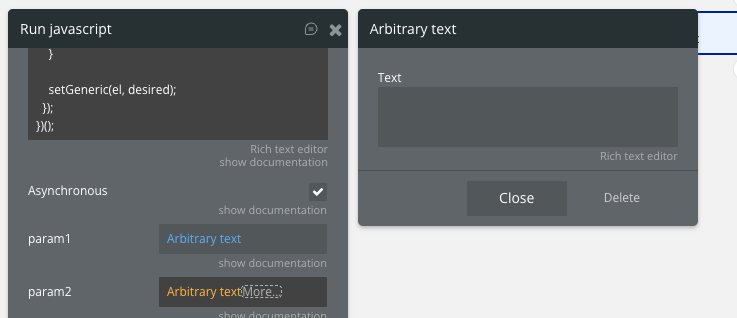
In param1, you set the dropdown IDs:
You can also use just one ID if needed.
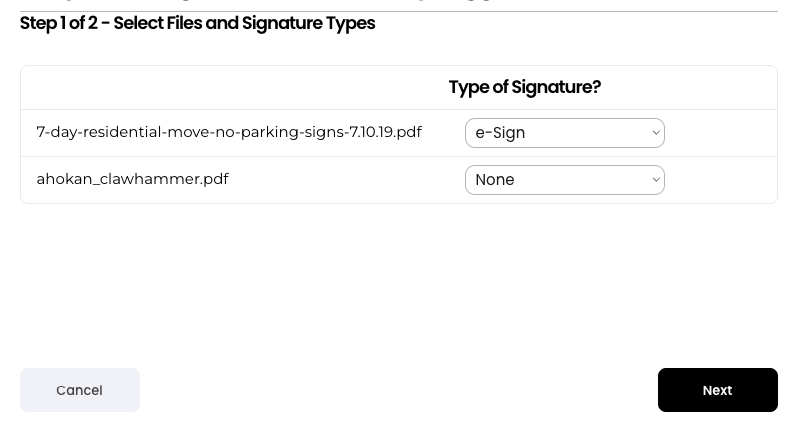
And for the param2 value (the value you want in those dropdowns), you can set something like None, and all dropdowns with the provided IDs will take that value.
If you leave the value empty (as shown in the image below), all those dropdowns will be cleared:




 2.) I worry about bubble deploying changes that may cause the JS to fail unexpectedly in the future.