⚡ Magic Table: sortable tables instantly generated from your DataType

Hello everyone,
I’m happy to introduce you to :top_hat: Magic Table, my new plugin that lets you create a table directly from your Bubble database in under 30 seconds – yes, really :sweat_smile:.

Forget the pain of building tables in Bubble using the built-in “Table” element, or having to define every single column manually with other plugins. Magic Table does it all for you.

table_video

Check out the demo and editor to see it in action:
> Try it on a demo page
> Check the editor page
> Get the plugin


:magic_wand: CREATE COLUMNS AUTOMATICALLY

The idea is simple and powerful: you choose a list of any data, and Magic Table automatically retrieves the DataType fields and create a table, using fields as columns. Of course, you can add any additional custom column, keeping full control over formatting and data structure.


:high_voltage: SUPER FAST & POWERFUL

Advanced features like dynamic column sorting, selection checkboxes, smart pagination, and smooth rendering are built-in and effortless. Whether you’re handling a handful of rows or tens of thousands, performance remains rock-solid.


:artist_palette: INFINITELY CUSTOMIZABLE

Magic Table offers 14 beautiful preset themes, and if that’s not enough, you can tweak everything - colors, fonts, borders, paddings, etc - with over 100 parameters. Designed to match your app perfectly.
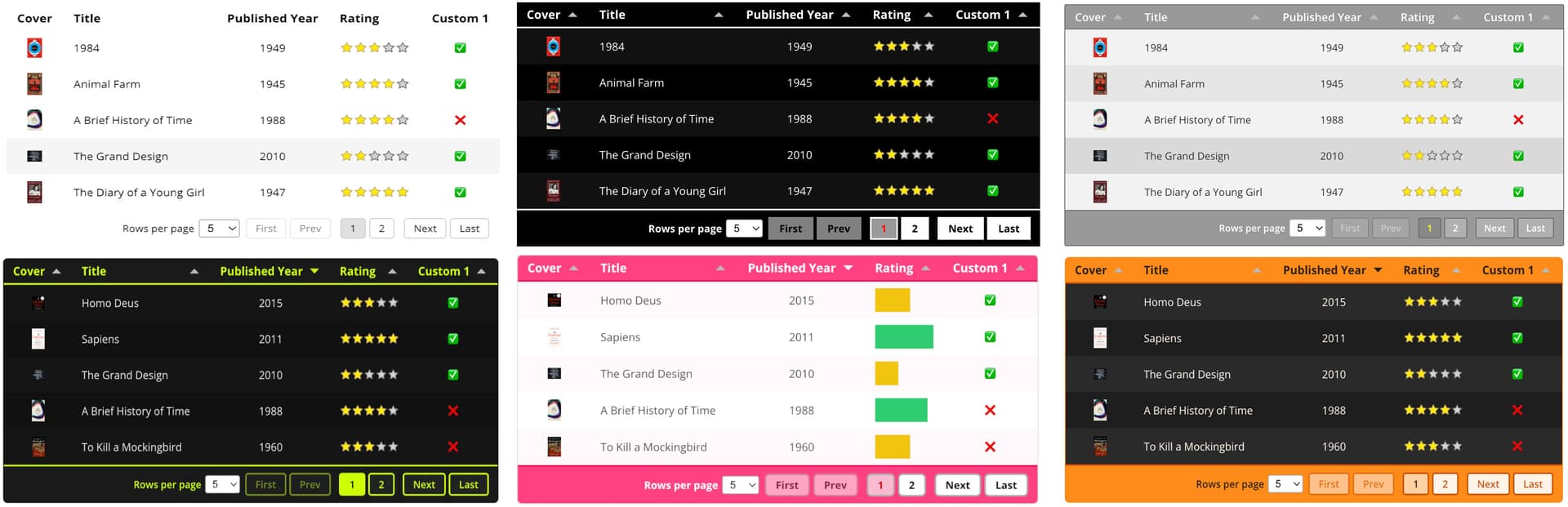

Try it yourself and see how it works:
> Try it on a demo page
> Check the editor page
> Get the plugin

Let me know what you think! Feedback and suggestions are always appreciated.

2 Likes

I’m offering a FREE trial of the plugin to the first 10 users who request it.
Just drop me a message here if you’d like to give it a try.

Hey @Cosmic.Steve congratz, it looks great!
I’d like to test it, how can I do?

1 Like

Apparently a very complete and customizable table plugin.

Great job @Cosmic.Steve !

2 Likes

@Cosmic.Steve it looks awesome. I’d like to try it out please

1 Like

Thank you for your nice words @Newed !

@jusses @as3alan I just sent you a DM.

1 Like

Looks like a great plugin! I would love to try it out if you still have spots :slight_smile:

1 Like

Yes @reid4010 , check your DMs! :+1:

The plugin is absolutely amazing Steve, thank you! :clap:t2::clap:t2::clap:t2: I have a question: how can I apply the bar format to numbers as I see in the examples images?

1 Like

In the “Custom formats list” field, you can add a list of texts to specify what format you want to apply to each column. Use “progress” where you want to apply the progress bar format. Make sure to set the “Progress MAX” parameter to your desired value in the FORMATTING DATA section.

Just went to the plugin page … There are Additional data sources! Great for pulling data together!!

Fantastic! - you might have also grabbed me to buy the onboarding tour!

1 Like

Thank you @dhalpern6 ! :folded_hands:t2:

5 spots remaining for the FREE trial. Please let me know here if you want to use the plugin for free. :folded_hands:

Hey @Cosmic.Steve I would like to try the plugin out

Just sent you a DM!

love to give it a crack @Cosmic.Steve

Thanks to everyone that contributed to test this plugin! All of your suggestions have been implemented and available in the latest version of the plugin. :folded_hands:

Steve, looks fantastic. do you have an example using custom data (a rollup other datasets). For example in the book example, lets assume there’s a reviews dataset with a reviewer name and a book field and I wanted to show in the table all the reviewer names for the book (of that row). How would I go about that?

Hey @code-escapee , I’m happy that you like my plugin!
What you ask is already happening in the live page demo:

In fact, the Author dataset is a separate table, and every Book has a custom field Author. In addition, each Author has a custom field Category, which is also shown in the table.

You can set up your table plugin to reach up to 3 levels of nested custom fields, changing the parameter “Fields depth”. After that, you can just add any columns to the table by adding the field “Author > Category > Name” to the Field parameter. All the available fields will be shown in the plugin state “Allowed fields”.

Feel free to reach out via DM if you needd further assistance with the plugin! :slight_smile:

1 Like